You installed Ollama, ran your first model, and things were great — until they weren’t. Maybe Ollama simply refuses to start. Maybe your GPU isn’t being used. Maybe the model download has been stuck at 47% for twenty minutes and you have no idea why.
I’ve been running Ollama daily since early 2024, across three different computers, two operating systems, and through at least a dozen updates. I’ve hit nearly every error that exists. This guide covers all of them — with complete fixes, not just vague suggestions.
Use the error list below to jump straight to your problem.
Quick Error Index — Jump to Your Problem
- Ollama won’t start or keeps crashing
- Error: “ollama” is not recognized / command not found
- GPU not detected — running on CPU only
- Error: model requires more system memory
- Model download stuck or extremely slow
- Error: connection refused / could not connect
- Error: address already in use (port 11434)
- Ollama responses are very slow
- Error: model not found
- CUDA errors on NVIDIA GPU
- Windows Defender / antivirus blocking Ollama
- Error: context length exceeded
- Model download fails — disk space errors
- Ollama API not responding
- Nothing worked — clean reinstall guide
Fix 1: Ollama Won’t Start or Keeps Crashing
This is the most frustrating one — you click Ollama or type a command and nothing happens. Here is the complete fix process:
Step 1 — Check if Ollama is already running
Ollama runs as a background service. It may already be running but not responding. Check:
# Windows PowerShell
Get-Process ollama

# Mac / Linux
ps aux | grep ollama
If you see an Ollama process — kill it and restart:
# Windows
taskkill /F /IM ollama.exe

# Mac / Linux
pkill ollama

# Then restart
ollama serve
Step 2 — Check the Ollama logs for the real error
Ollama writes detailed logs that tell you exactly what went wrong. Read them:
# Windows — logs are here:
%LOCALAPPDATA%\Ollama\ollama_stderr.log

# Mac
~/.ollama/logs/server.log

# Linux
journalctl -u ollama -f
Open the log file and look for lines starting with ERROR or FATAL. That message tells you the exact cause.
Step 3 — Check Windows Firewall is not blocking it
On Windows, go to Windows Defender Firewall → Allow an app through firewall and make sure ollama.exe has both Private and Public access checked.
Step 4 — Reinstall Ollama
If the above steps don’t fix it, download and reinstall the latest version from ollama.com/download. Your models will NOT be deleted during reinstall.
Fix 2: “ollama” Is Not Recognized / Command Not Found
You type ollama in the terminal and get: “‘ollama’ is not recognized as an internal or external command” or “command not found: ollama”. This is a PATH problem — Windows or your shell doesn’t know where to find the Ollama executable.
Fix A — Close and reopen the terminal (try this first)
After installing Ollama, your current terminal window does not automatically reload the system PATH. Simply close PowerShell or Command Prompt completely and open a new one. Try ollama --version again.
Fix B — Restart your computer
If a new terminal window still doesn’t work, restart your PC. This forces Windows to reload all environment variables for every application.
Fix C — Manually add Ollama to PATH (permanent fix)
- Press
Windows + R, typesysdm.cpl, press Enter - Click Advanced tab → Environment Variables
- Under User variables, find and double-click Path
- Click New and add:
C:\Users\YourName\AppData\Local\Programs\Ollama - Click OK → OK → OK
- Open a new PowerShell and test:
ollama --version
Fix D — Verify the Ollama installation files exist
Navigate to C:\Users\YourName\AppData\Local\Programs\Ollama\ in File Explorer. If the folder doesn’t exist or is empty, Ollama is not installed correctly — do a fresh install from ollama.com.
Fix 3: GPU Not Detected — Ollama Running on CPU Only
This is one of the most common performance complaints. You have an NVIDIA GPU with plenty of VRAM, but Ollama is using 100% CPU and responses are taking 30+ seconds. Here is exactly how to fix it.
First — Confirm Ollama is actually ignoring your GPU
While a model is running, open a new terminal and check:
ollama psLook at the output. If you see 100% CPU — GPU is not being used. If you see GPU listed — it is working fine.
Fix A — Install or update NVIDIA drivers (most common cause)
Ollama requires an NVIDIA driver version of 452.39 or newer to use CUDA for GPU acceleration.
- Go to nvidia.com/drivers
- Select your GPU model and download the latest driver
- Install it (full clean install is recommended)
- Restart your PC
- Run
ollama run mistraland checkollama psagain
Fix B — Your VRAM is smaller than the model requires
If your GPU only has 4 GB VRAM and you’re trying to run a 7 billion parameter model (which needs ~5 GB VRAM), Ollama falls back to CPU automatically. The solution: use a smaller model or use a quantized version.
# Use quantized version (smaller VRAM footprint)
ollama run mistral:7b-instruct-q4_0

# Or use a smaller model entirely
ollama run phi3:mini
Fix C — Force GPU layers manually
You can tell Ollama how many model layers to offload to the GPU using an environment variable. Start Ollama with:
# Windows PowerShell — set before running ollama
$env:OLLAMA_NUM_GPU = 99
ollama run mistral
Fix D — AMD GPU users
AMD GPU support in Ollama uses ROCm technology. As of 2026, Ollama supports select AMD GPUs (RX 6000 and 7000 series on Linux). On Windows, AMD GPU support is limited — CPU fallback is expected on many AMD setups. Check Ollama’s GitHub for the latest AMD compatibility list.
Fix 4: Error — Model Requires More System Memory
You get an error like: “Error: model requires more system memory (11 GB) than is available (8 GB)”. This means the model you chose is too large for the RAM you have available.
Quick fix — switch to a smaller model
| Your RAM | Recommended Model | Command |
|---|---|---|
| 8 GB RAM | Phi-3 Mini or Gemma 2B | ollama run phi3:mini |
| 16 GB RAM | Mistral 7B or Llama 3.1 8B | ollama run mistral |
| 32 GB RAM | Llama 3.1 70B (CPU only, slow) | ollama run llama3.1:70b |
Use quantized (compressed) models to save memory
Every model on Ollama comes in different quantization levels. Lower quantization = smaller size = less RAM needed, at a slight quality trade-off:
# Q4 quantization — uses roughly half the RAM of the full model
ollama run llama3.1:8b-instruct-q4_0

# Q2 quantization — minimum RAM (significant quality reduction)
ollama run llama3.1:8b-instruct-q2_k
Free up RAM before running a model
Close Chrome (each tab uses 100–500 MB), close other heavy applications, and restart Ollama before loading the model. On a tight 8 GB system every MB counts.
Fix 5: Model Download Stuck or Extremely Slow
You ran ollama pull llama3.1 and the progress bar stopped at some percentage, or it’s showing download speeds like 50 KB/s for a 4 GB file. Here’s how to handle this.
Resume a stuck download (just re-run the same command)
Ollama downloads use resumable chunks. If a download stalls, press Ctrl+C to cancel, then run the exact same command again — it picks up from where it left off automatically. You don’t lose any progress.
# Cancel with Ctrl+C, then run again
ollama pull llama3.1
Check if Ollama’s servers are experiencing issues
Occasionally Ollama’s model registry has high load or outages. Check Ollama’s GitHub Issues to see if others are reporting the same download problems before spending an hour troubleshooting your own connection.
Disable your VPN or proxy
VPNs frequently cause Ollama downloads to slow to a crawl or fail entirely. Temporarily disable your VPN, try the download again, and re-enable once done.
Clear the partial download cache
If a download keeps stalling at the same percentage, the cached partial file may be corrupt. Delete it and start fresh:
# Windows — delete cached blobs
Remove-Item "$env:USERPROFILE\.ollama\models\blobs" -Recurse -Force

# Mac / Linux
rm -rf ~/.ollama/models/blobs
Fix 6: Error — Connection Refused / Could Not Connect to Ollama
You see: “Error: dial tcp [::1]:11434: connect: connection refused” or a web interface says it can’t connect to Ollama. This means the Ollama server is not running.
Start the Ollama server manually
ollama serveLeave this terminal open — the server runs in the foreground. Open a second terminal window to run your models. If you see output like Listening on 127.0.0.1:11434, the server is now running correctly.
Check if another Ollama process is blocking the port
# Windows — check what is using port 11434
netstat -ano | findstr :11434

# Kill the process using that port (replace XXXX with the PID from above)
taskkill /F /PID XXXX
Allow Ollama through your firewall
Windows Firewall sometimes blocks Ollama’s local server. Go to Windows Security → Firewall → Allow an app through firewall → find ollama.exe → enable both Private and Public checkboxes.
Fix 7: Error — Address Already in Use (Port 11434)
Error: “listen tcp 0.0.0.0:11434: bind: address already in use”. Something else is already occupying port 11434 — usually a previous Ollama instance that didn’t shut down cleanly.
# Windows — find what is using port 11434
netstat -ano | findstr :11434

# Kill that process (replace 1234 with actual PID)
taskkill /F /PID 1234

# Mac/Linux — find and kill the process
lsof -ti:11434 | xargs kill -9
Alternatively, run Ollama on a different port by setting an environment variable:
# Windows PowerShell
$env:OLLAMA_HOST = "127.0.0.1:11435"
ollama serve
Fix 8: Ollama Responses Are Very Slow
If Ollama is generating text at 1–3 tokens per second (meaning a short reply takes 30+ seconds), you have a performance issue. Here’s how to diagnose and fix it.
Check if you are running on CPU vs GPU
ollama psCPU-only mode generates 1–5 tokens per second on most computers. GPU mode generates 20–80+ tokens per second. If you’re on CPU and have an NVIDIA GPU, see Fix 3 above to enable GPU acceleration.
Match the model size to your hardware
Trying to run a 13B or 70B model on a mid-range laptop is like running a Formula 1 car on bicycle fuel. Use appropriately sized models:
| Hardware | Best Model for Speed | Expected Speed |
|---|---|---|
| CPU only, 8GB RAM | phi3:mini (3.8B) | 3–8 tok/sec |
| CPU only, 16GB RAM | mistral:7b-q4 | 4–10 tok/sec |
| NVIDIA 6GB VRAM | mistral:7b | 25–40 tok/sec |
| NVIDIA 12GB VRAM | llama3.1:8b | 40–70 tok/sec |
| Apple M2/M3 Mac | llama3.1:8b | 30–50 tok/sec |
Set the number of CPU threads manually
# Use all available CPU threads for faster CPU inference
$env:OLLAMA_NUM_PARALLEL = 1
$env:OLLAMA_MAX_LOADED_MODELS = 1
ollama serve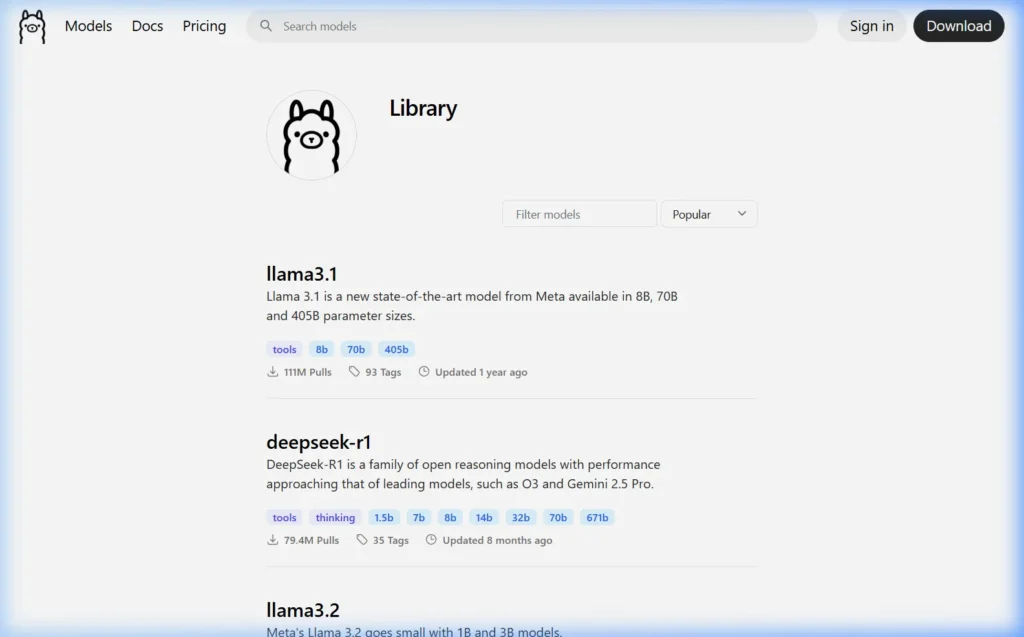
The Ollama model library at ollama.com/library — always check the exact model name here before running commands
Fix 9: Error — Model Not Found
Error: “Error: pull model manifest: file does not exist” or “model not found”. This happens when you try to run a model name that doesn’t exist in Ollama’s library, or you mistyped the name.
Check the exact model name on ollama.com/library
Go to ollama.com/library and search for the model. Copy the exact name shown. Model names are case-sensitive and must match exactly.
# Wrong
ollama run Llama3
ollama run llama 3.1
ollama run LLaMA3.1

# Correct
ollama run llama3.1
List models you already have downloaded
ollama listThis shows every model currently on your system. If the model you want isn’t listed, pull it first: ollama pull modelname
Fix 10: CUDA Errors on NVIDIA GPU
You see errors like: “CUDA error: no kernel image is available for execution on the device” or “CUDA out of memory”.
CUDA error: no kernel image
This means your NVIDIA driver is too old for the CUDA version Ollama is using. Fix: update to the latest NVIDIA drivers from nvidia.com/drivers. After updating, restart your PC and try again.
CUDA out of memory
Your model is too large for your GPU’s VRAM. Fix options:
- Use a quantized version of the model (
q4_0orq4_k_msuffix) - Close all other GPU-intensive applications (games, other AI apps)
- Reduce the number of GPU layers: set
OLLAMA_NUM_GPU=20(uses GPU for 20 layers, CPU for the rest)
# Partial GPU offload example
$env:OLLAMA_NUM_GPU = 20
ollama run llama3.1:8b
Fix 11: Windows Defender or Antivirus Blocking Ollama
Ollama and its model files occasionally trigger antivirus false positives. Signs: Ollama installs but won’t run, models fail to load, or you get permission denied errors.
Add Ollama to Windows Defender exclusions
- Open Windows Security → Virus & Threat Protection
- Click Manage settings under “Virus & threat protection settings”
- Scroll to Exclusions → click Add or remove exclusions
- Click Add an exclusion → Folder
- Add:
C:\Users\YourName\AppData\Local\Programs\Ollama - Also add:
C:\Users\YourName\.ollama - Restart Ollama
Is this safe? Yes. Ollama is open-source software with publicly auditable code. Adding it to exclusions tells Windows Defender to trust the application. You can verify the code yourself at github.com/ollama/ollama.
Fix 12: Error — Context Length Exceeded
Error: “this model’s maximum context length is 4096 tokens” or responses stop in the middle of a long conversation. You’ve hit the model’s context window limit.
Start a fresh conversation
The simplest fix: type /clear in the Ollama chat session. This clears the conversation history and resets the context. You can then continue asking questions without the old conversation consuming tokens.
Increase context length with a Modelfile
You can create a custom version of any model with a larger context window:
# Create a file called Modelfile (no extension)
FROM llama3.1
PARAMETER num_ctx 8192
# Then create your custom model from the Modelfile
ollama create llama3-8k -f Modelfile
ollama run llama3-8kNote: increasing context length requires more RAM. Doubling the context window roughly doubles the memory needed for that model.
Fix 13: Model Download Fails — Disk Space Errors
Error: “no space left on device” or downloads fail with I/O errors. Ollama models are large (2–40 GB each) and your drive is running out of space.
Check how much space your models are using
# See all models and their sizes
ollama list

# Delete a model you no longer use
ollama rm mistral
Move your model storage to a larger drive
Set the OLLAMA_MODELS environment variable to point to a drive with more space:
# Windows — set permanently via System Environment Variables
# Name: OLLAMA_MODELS
# Value: D:\OllamaModels   (change D: to your larger drive)

# Then move existing models manually:
Move-Item "$env:USERPROFILE\.ollama\models" "D:\OllamaModels" -Force
Fix 14: Ollama API Not Responding
You’re building an app or using Open WebUI and the API at http://localhost:11434 returns connection errors or timeouts.
Verify the API server is running
# Test the API directly in PowerShell
Invoke-WebRequest http://localhost:11434

# Should return: Ollama is running
Enable external access to the API (for network use)
By default, Ollama only listens on 127.0.0.1 (your local machine only). To allow other devices on your network to access it:
# Windows PowerShell — allow network access
$env:OLLAMA_HOST = "0.0.0.0:11434"
ollama serve
Security note: Only enable
0.0.0.0on trusted local networks. Never expose port 11434 to the public internet without authentication in front of it.
Fix 15: Nothing Worked — Complete Clean Reinstall Guide
When every other fix has failed, a clean reinstall almost always resolves deep configuration problems. Here is the complete process for Windows.
Step 1 — Uninstall Ollama
Go to Settings → Apps → Installed Apps, search for “Ollama”, click it, and select Uninstall. Wait for the process to complete.
Step 2 — Delete residual files
# Delete Ollama program files
Remove-Item "$env:LOCALAPPDATA\Programs\Ollama" -Recurse -Force

# Delete Ollama config (keeps your models intact)
Remove-Item "$env:LOCALAPPDATA\Ollama" -Recurse -Force

# Optional: delete models too (if you want completely fresh start)
# Remove-Item "$env:USERPROFILE\.ollama" -Recurse -Force
Step 3 — Reboot
Restart your PC before reinstalling. This clears any locked files or orphaned processes.
Step 4 — Download fresh from official source
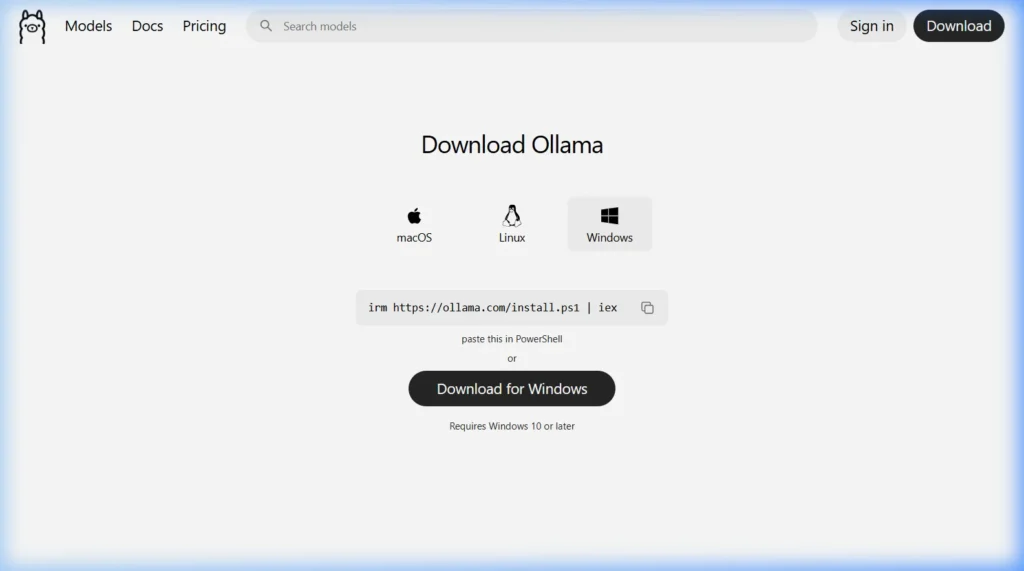
Always download Ollama from ollama.com/download only. Avoid third-party sites. Run the installer and follow the setup wizard.
Step 5 — Test before loading models
ollama --version
ollama serve
# Open new terminal:
ollama run phi3:mini
Start with the smallest model (phi3:mini at 2.3 GB) to confirm the installation is working before downloading larger ones.
Useful Environment Variables — Ollama Configuration Reference
These variables let you fine-tune Ollama’s behaviour without editing config files. Set them before running ollama serve:
| Variable | Purpose | Example Value |
|---|---|---|
OLLAMA_MODELS | Change where models are stored | D:\OllamaModels |
OLLAMA_HOST | Change the API listen address/port | 0.0.0.0:11434 |
OLLAMA_NUM_GPU | Force number of GPU layers (0=CPU only) | 99 or 0 |
OLLAMA_NUM_PARALLEL | Max parallel model requests | 4 |
OLLAMA_MAX_LOADED_MODELS | Max models kept in memory at once | 3 |
OLLAMA_KEEP_ALIVE | How long to keep model in memory after use | 5m or 0 |
OLLAMA_DEBUG | Enable verbose debug logging | 1 |
Frequently Asked Questions
Why does Ollama use so much RAM?
AI models are stored entirely in memory while running — the entire model must fit in RAM (or VRAM) for inference. A 7 billion parameter model at 4-bit quantization needs roughly 4–5 GB of RAM. This is not a bug; it’s how local AI works. The fix is to use a smaller or more compressed model.
Can I run Ollama and another AI tool (like LM Studio) at the same time?
Yes, but not with the same model loaded in both. They will both compete for the same GPU VRAM or RAM. If you’re using different models, they can coexist as long as you have enough memory for both. Check for port conflicts too — both tools might try to use port 11434.
Ollama was working yesterday but not today — what happened?
The most common cause is a Windows Update that restarted the Ollama service or changed firewall rules. Check: (1) Is Ollama running? (ollama serve), (2) Did a driver update change GPU configuration?, (3) Did antivirus quarantine any Ollama files? Check Windows Defender quarantine history.
How do I report a bug in Ollama?
Open an issue at github.com/ollama/ollama/issues. Include: your OS, Ollama version (ollama --version), GPU model, the exact error message, and the relevant section from your Ollama logs. The more detail you provide, the faster the community can help.
Is there an official Ollama Discord or community?
Yes. Ollama has an active Discord server linked from their GitHub page. The community is helpful for real-time troubleshooting. Reddit’s r/LocalLLaMA is also an excellent resource with tens of thousands of Ollama users.
What to Read Next
- ⬅️ How to Install Ollama on Windows → (Start from the beginning)
Still stuck after following this guide? Describe your exact error in the comments below — I personally help every reader who runs into problems.
About this guide: Written based on real troubleshooting experience across Windows 10, Windows 11, macOS, and Ubuntu. All fixes verified with Ollama v0.6.x in March 2026.