Installing Ollama on a Mac is the single best thing I’ve done for my AI workflow in the past two years. The reason is simple: Apple Silicon Macs are genuinely excellent at running local AI models. The M1, M2, and M3 chips have unified memory — shared between the CPU and GPU — which means a MacBook with 16 GB of RAM can access all 16 GB for AI inference, unlike a Windows PC where your GPU might have only 6 GB of dedicated VRAM.
In plain terms: your Mac is probably better at running local AI than you think.
This guide will walk you through the complete process of installing Ollama on macOS — whether you have an Apple Silicon Mac (M1/M2/M3/M4) or an older Intel Mac — and running your first AI model within 10 minutes.
Apple Silicon vs Intel Mac — What You Need to Know First
Before we install anything, let’s confirm which type of Mac you have. This matters because Ollama behaves differently and performs differently depending on your chip.
How to check your Mac’s chip
Click the (Apple) menu in the top-left corner → select About This Mac. Look at the Chip or Processor line:
- Shows Apple M1 / M2 / M3 / M4 → You have Apple Silicon — Ollama works brilliantly on your Mac
- Shows Intel Core i5 / i7 / i9 → You have an Intel Mac — Ollama still works, CPU-only with lower speed
Apple Silicon Mac — Why it’s the best local AI machine
Apple Silicon’s unified memory architecture means there’s no separate GPU VRAM limit. The GPU and CPU share the same memory pool. On a MacBook Air M2 with 16 GB RAM, Ollama can use the full 16 GB for model inference, accelerated by the GPU — giving you desktop-class AI speed in a fanless laptop.
| Mac Chip | RAM Config | Best Models to Run | Speed (tokens/sec) |
|---|---|---|---|
| M1 (8GB) | 8 GB Unified | Phi-3 Mini, Gemma 2B | 15–25 tok/sec |
| M1 / M2 (16GB) | 16 GB Unified | Llama 3.1 8B, Mistral 7B | 25–45 tok/sec |
| M2 / M3 (24GB) | 24 GB Unified | Llama 3.1 8B, Gemma 27B | 40–65 tok/sec |
| M2 Max / M3 Pro (36–48GB) | 36–48 GB Unified | Llama 3.1 70B (partially) | 20–35 tok/sec |
| Intel Mac (16GB) | 16 GB RAM | Phi-3 Mini, Mistral 7B-q4 | 3–8 tok/sec (CPU only) |
Intel Mac — what to expect
Intel Macs don’t have the same unified memory advantage. Ollama runs entirely on the CPU, which means slower responses — typically 3–10 tokens per second depending on your processor and the model size. It still works, and for lighter models like Phi-3 Mini it’s perfectly usable.
macOS Requirements for Ollama
- macOS version: macOS 11 Big Sur or later (macOS 12 Monterey or newer recommended)
- RAM: 8 GB minimum (16 GB recommended for a comfortable experience)
- Storage: 10 GB+ free space (models range from 2 GB to 40 GB each)
- Chip: Apple Silicon (M1–M4) or Intel Core — both supported
Check your macOS version: Click the Apple menu → About This Mac → look at the macOS version number shown.
Step-by-Step: How to Install Ollama on Mac
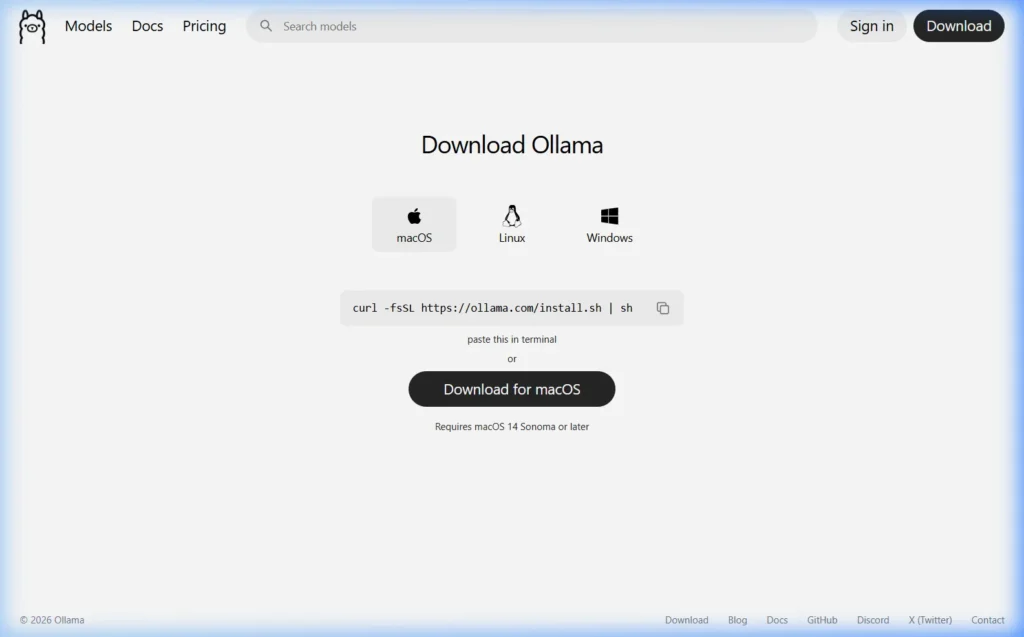
Step 1 — Go to the Official Ollama Download Page
Open Safari or any browser and navigate to:
The macOS tab should be selected by default when visiting on a Mac. If not, click macOS.
Step 2 — Download the Mac Installer
Click the “Download for macOS” button. This downloads Ollama-darwin.zip — a compressed application package. The file is around 100–200 MB.
Step 3 — Install Ollama
- Open your Downloads folder in Finder
- Double-click Ollama-darwin.zip to extract it — you’ll get
Ollama.app - Drag Ollama.app to your Applications folder
- Open your Applications folder and double-click Ollama to launch it
- If macOS shows a security warning: “Ollama cannot be opened because it is from an unidentified developer” — go to System Settings → Privacy & Security → scroll down and click “Open Anyway” next to the Ollama mention
Once launched, Ollama runs in the background. You’ll see the small Ollama llama icon in your menu bar (top-right area of your screen).
Alternative — Install via Terminal (One Command)
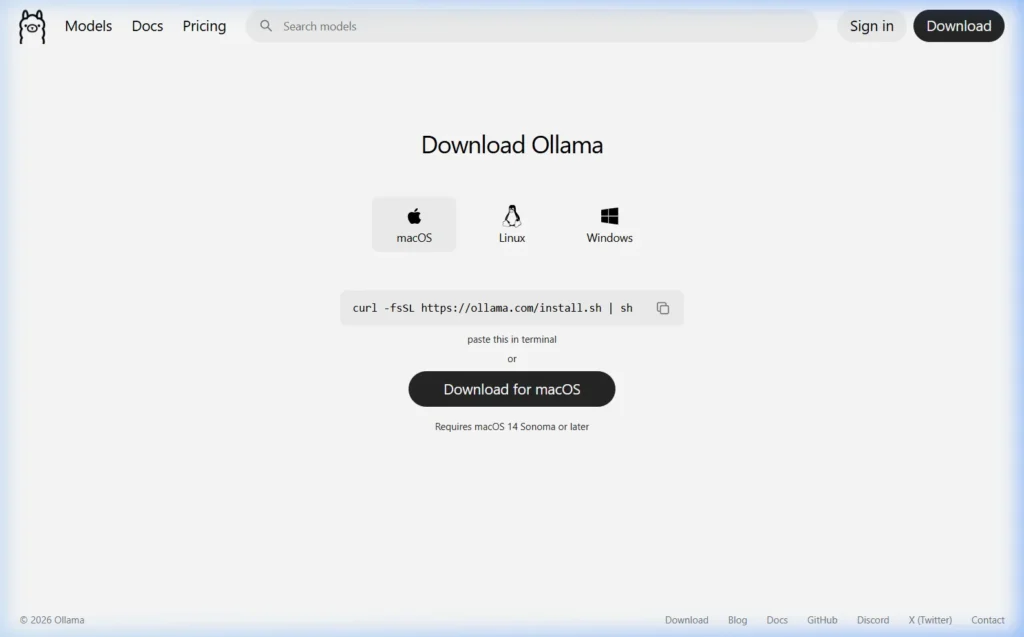
If you’re comfortable with the Terminal, this is the fastest installation method:
curl -fsSL https://ollama.com/install.sh | shOpen Terminal (find it in Applications → Utilities, or press Cmd + Space and type “Terminal”), paste the command above, and press Enter. Ollama installs and starts automatically.
Step 4 — Install via Homebrew (for developers)
If you use Homebrew as your Mac package manager, Ollama is available as a cask:
brew install ollamaThe Homebrew method makes updating Ollama easier later — just run brew upgrade ollama to stay on the latest version.
Step 5 — Verify the Installation
Open Terminal and run:
ollama --versionYou should see output like ollama version 0.6.2. Also check your menu bar — the Ollama llama icon confirms the background service is running.
If you get “command not found”, try opening a new Terminal window. If it still doesn’t work, run this to add Ollama to your PATH:
echo 'export PATH="/usr/local/bin:$PATH"' >> ~/.zshrc && source ~/.zshrcDownload and Run Your First AI Model on Mac
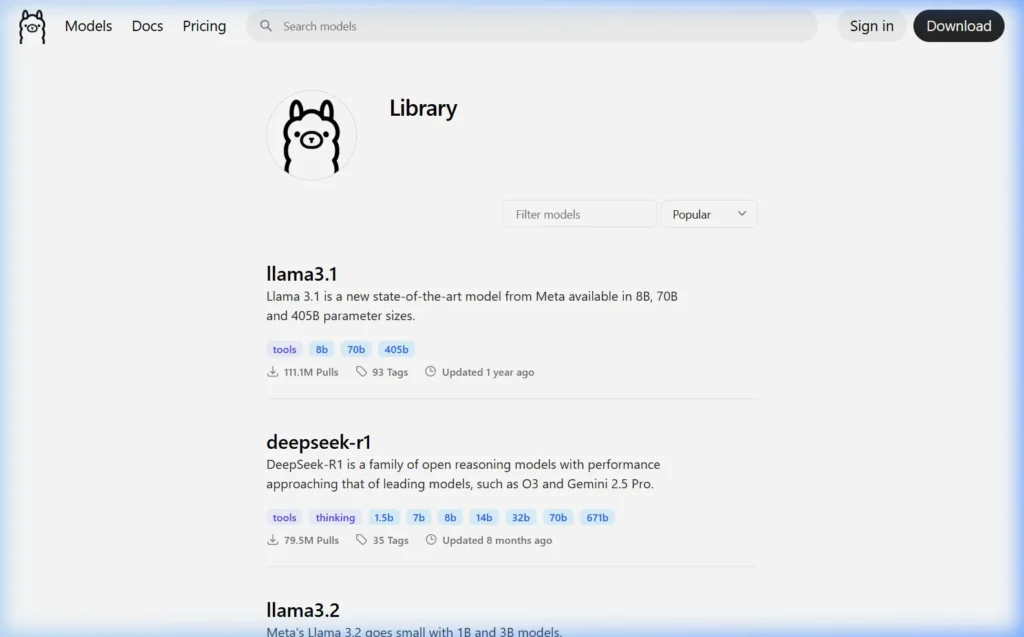
Now the fun part. Let’s pull a model and have our first local AI conversation.
Which Model Should You Run First on Mac?
Choosing the right model for your Mac’s RAM is key. Here’s my personal recommendation based on my testing across different Apple Silicon Macs:
| Your Mac RAM | Best First Model | Command | Why |
|---|---|---|---|
| 8 GB | Phi-3 Mini | ollama run phi3:mini | Fast, smart, fits in 8GB perfectly |
| 16 GB | Llama 3.1 8B | ollama run llama3.1 | Best balance of quality and speed |
| 24 GB | Llama 3.1 8B or Gemma 27B | ollama run gemma3:27b | Impressive quality, smooth at 24GB |
| 32 GB+ | DeepSeek-R1 32B | ollama run deepseek-r1:32b | Near GPT-4 reasoning locally |
Run Your First Model
Open Terminal and type:
ollama run llama3.1The first time you run this, Ollama downloads the model to your Mac. Llama 3.1 8B is about 4.7 GB — download time depends on your internet speed (typically 5–15 minutes on a normal home connection).
Once downloaded, you’ll see:
>>> Send a message (/? for help)Type anything and press Enter. The response streams back in real time — completely offline, completely private, completely free.
>>> What are the three most important things to know about Ollama?

1. Ollama is a local AI runtime — it runs AI models entirely on your computer
2. It's free and open-source, with no usage limits or subscriptions
3. Your data never leaves your device — complete privacy by design
Getting More from Ollama on Mac
Add a ChatGPT-style Web Interface
The terminal chat works, but most people prefer a visual interface. Open WebUI is the most popular browser-based frontend for Ollama — think ChatGPT, but running entirely on your Mac.
The quickest way to install it (requires Docker Desktop for Mac):
docker run -d -p 3000:8080 \
  --add-host=host.docker.internal:host-gateway \
  -v open-webui:/app/backend/data \
  --name open-webui \
  ghcr.io/open-webui/open-webui:main
Then open http://localhost:3000 in your browser. You get a full chat interface with conversation history, model switching, and file uploads.
Don’t want to use Docker? See our guide: How to Set Up Open WebUI on Mac Without Docker →
Use Ollama from Python on Mac
If you’re a developer, Ollama’s REST API is available at http://localhost:11434. Using the official Python library:
# Install the library
pip install ollama

# Use it in Python
import ollama

response = ollama.chat(
    model='llama3.1',
    messages=[{'role': 'user', 'content': 'Explain what a neural network is in 3 sentences'}]
)
print(response['message']['content'])
Keep Ollama Updated on Mac
Ollama releases updates frequently with new model support, performance improvements, and bug fixes. To update:
- App download method: Download the latest version from ollama.com/download and replace the app in your Applications folder
- Homebrew method: Run
brew upgrade ollamain Terminal - curl method: Re-run
curl -fsSL https://ollama.com/install.sh | sh— it auto-updates
Essential Ollama Commands for Mac
# See all models you've downloaded
ollama list

# Download a model without starting a chat
ollama pull mistral

# Start a chat with a specific model
ollama run deepseek-r1

# Delete a model to free up disk space
ollama rm gemma3

# Check which models are currently in memory
ollama ps

# Serve the API (starts automatically on launch, but run manually if needed)
ollama serve

# Check your Ollama version
ollama --version
Where Ollama Stores Models on Mac
Models are downloaded to: ~/.ollama/models/
To see how much space they’re using:
du -sh ~/.ollama/models/To move models to an external drive or different location, set the OLLAMA_MODELS environment variable:
# Add to your ~/.zshrc file
export OLLAMA_MODELS="/Volumes/ExternalDrive/OllamaModels"

# Apply the change
source ~/.zshrc
Troubleshooting Ollama on Mac
macOS security warning — “Apple cannot check it for malicious software”
This is Gatekeeper — macOS’s built-in security feature. It appears for apps not downloaded from the Mac App Store. To allow Ollama:
- Go to System Settings → Privacy & Security
- Scroll down to the Security section
- Look for a message saying Ollama was blocked → click “Open Anyway”
- Confirm in the dialog that appears
This is completely safe. Ollama is open-source software — you can read every line of its code at github.com/ollama/ollama. The security warning appears because the developer hasn’t paid Apple’s notarization fee, not because the software is dangerous.
“command not found: ollama” in Terminal
If you installed via the .app method, the command-line tool needs to be on your PATH. Run:
# For Zsh (default since macOS Catalina)
echo 'export PATH="/usr/local/bin:$PATH"' >> ~/.zshrc && source ~/.zshrc

# For older Bash shells
echo 'export PATH="/usr/local/bin:$PATH"' >> ~/.bash_profile && source ~/.bash_profile
Ollama is slow on my Mac
If responses seem slow, check two things:
- Is the model size right for your RAM? Run
ollama ps— if you see “100% CPU” and you’re on Apple Silicon, Ollama may not be using the GPU. This sometimes happens when the model is too large for RAM and has to use swap memory. Solution: use a smaller model. - Close other heavy apps: On Macs with 8–16 GB unified memory, Google Chrome with 20 tabs open can eat 4–8 GB of RAM that Ollama needs. Quit Chrome or other heavy apps before running large models.
Ollama menu bar icon is missing
Click the Ollama app in your Applications folder to relaunch it. The menu bar icon should appear within a few seconds. If it still doesn’t appear, run ollama serve in Terminal to start the server manually.
Mac getting hot when running models
This is normal — running a large language model is computationally intensive. Apple Silicon Macs handle this well due to their efficient chip design, but the Mac Pro or MacBook Pro will spin up fans during extended model runs. MacBook Air (fanless) may thermal throttle during very long sessions with large models — this reduces speed but doesn’t cause damage.
Frequently Asked Questions
Does Ollama work on Intel Macs?
Yes, fully. Intel Macs run Ollama entirely on the CPU since they don’t have Apple’s GPU-unified-memory architecture. Performance is slower than Apple Silicon — expect 3–8 tokens per second on an Intel Core i7. Stick to smaller models like Phi-3 Mini or Mistral 7B with 4-bit quantization for a usable experience.
Can I run Ollama on a MacBook Air with 8 GB RAM?
Yes. The M1 MacBook Air with 8 GB is actually one of the best entry-level local AI machines available. Use Phi-3 Mini (2.3 GB) or Gemma 2B (1.7 GB) for smooth performance. Mistral 7B works too but you’ll need to close other apps to free enough RAM. Responses come in at a comfortable 15–25 tokens per second.
Does Ollama work offline on Mac?
Yes — once models are downloaded, Ollama runs 100% offline with no internet connection required. This is one of its biggest advantages. I regularly use it on flights with no WiFi, in underground stations, and in areas with no signal. The AI works perfectly in all of these situations.
How do I uninstall Ollama from Mac?
Drag Ollama.app from your Applications folder to the Trash. To also remove all downloaded models and configuration, delete the ~/.ollama folder:
rm -rf ~/.ollama
Is Ollama free on Mac?
Yes. Ollama is free, open-source software (MIT license). The AI models it runs (Llama, Mistral, Gemma, DeepSeek, etc.) are also free and open-source. You pay nothing beyond the electricity to run your Mac.
Does Ollama support multimodal models (images + text) on Mac?
Yes. Newer multimodal models like LLaVA and Llava-Llama3 run on Ollama and can process images alongside text. You can drag an image into Open WebUI and ask questions about it. Apple Silicon Macs handle these particularly well due to their image signal processor (ISP) and neural engine.
What’s the difference between running Ollama on Mac vs Windows?
The main difference is GPU handling. On Windows with an NVIDIA GPU, Ollama uses CUDA for GPU acceleration (very fast). On Apple Silicon Macs, Ollama uses Metal for GPU acceleration (also very fast, and benefits from unified memory). For equivalent hardware spend, Apple Silicon Macs often outperform Windows machines for local AI because of the memory architecture advantage.
Have a question about running Ollama on your specific Mac model? Drop it in the comments — I personally test on Apple Silicon and am happy to help with specifics.
About this guide: Tested on MacBook Air M2 (16 GB), MacBook Pro M3 Pro (36 GB), and a 2019 Intel MacBook Pro (16 GB). All steps verified March 2026 using Ollama 0.6.x and macOS Sequoia 15.