The Ollama terminal is perfectly functional, but let’s be honest — typing into a command-line chat interface isn’t how most people want to use AI on a daily basis. Open WebUI changes that completely. It gives you a full ChatGPT-style browser interface connected directly to your local Ollama installation — private, offline, and completely free.
I’ve been running Open WebUI as my daily AI interface for over a year. In this guide, I’ll show you every installation method, the complete setup process, how to configure it properly, and the features that make it genuinely better than ChatGPT for many use cases.
What is Open WebUI?
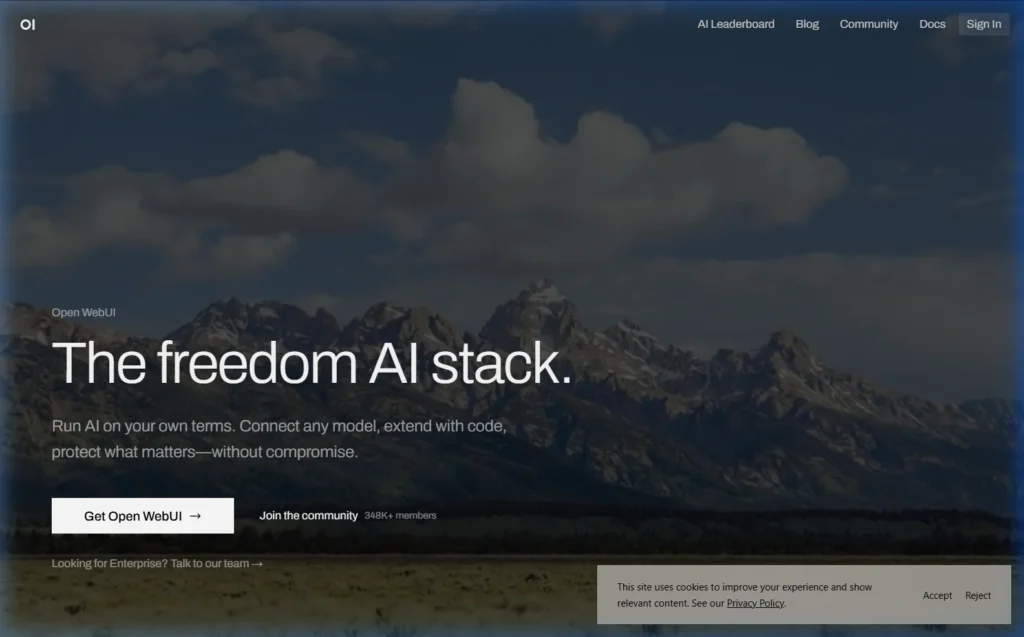
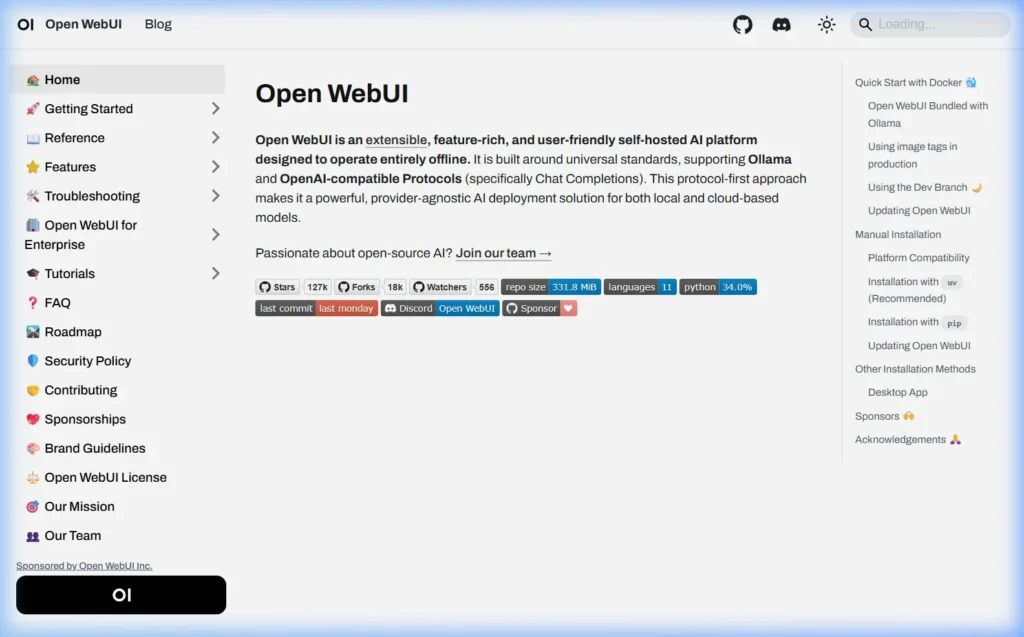
Open WebUI (formerly known as Ollama WebUI) is a self-hosted, feature-rich web interface designed to work with Ollama and other local AI backends. Think of it as a private, offline version of ChatGPT that runs entirely on your own computer.
What you get with Open WebUI
- ChatGPT-style conversation interface — multi-turn conversations with clean formatting
- Model switcher — switch between any Ollama model from a dropdown
- Conversation history — all chats saved locally, searchable, organized
- File uploads — send PDFs, images, and documents for the AI to analyze
- Web search integration — optionally enable real-time web search in responses
- Multi-user support — create accounts for multiple people on your household or team
- Voice input and output — talk to your AI, hear responses read aloud
- Image generation — integrate with Stable Diffusion or DALL-E
- Custom system prompts — set permanent instructions for any model
- RAG (document chat) — upload files and ask questions about them
Prerequisites — What You Need Before Installing Open WebUI
- Ollama installed and running — if not, see: How to Install Ollama on Windows → | Mac → | Linux →
- At least one model downloaded — run
ollama pull llama3.1if you haven’t yet - RAM: 4 GB free beyond what Ollama uses (Open WebUI itself is lightweight)
- Browser: Chrome, Firefox, Edge, or Safari — any modern browser works
Verify Ollama is running before proceeding:
ollama --version
ollama list
Method 1 — Install with Python pip (Easiest, No Docker)
This is the simplest method — no Docker required, works on Windows, Mac, and Linux.
Requirements: Python 3.11+
Check your Python version first:
python --version
# Needs to show Python 3.11 or higher
If you don’t have Python 3.11+, download it from python.org/downloads.
Install Open WebUI
pip install open-webuiStart Open WebUI
open-webui serveWait 30–60 seconds for it to initialize. Then open your browser and go to:
You’ll see the Open WebUI setup screen. Create an admin account (this is local only — no external servers), and you’re in.
Windows tip: If
open-webuiisn’t recognized after install, usepython -m open_webui serveinstead, or close and reopen your terminal to reload PATH.
Method 2 — Install with Docker (Recommended for Servers)
Docker provides the most reliable and portable Open WebUI installation — ideal for home servers, Linux machines, and anyone who wants clean, isolated deployments.
If Ollama is installed directly on your machine
docker run -d \
  -p 3000:8080 \
  --add-host=host.docker.internal:host-gateway \
  -v open-webui:/app/backend/data \
  --name open-webui \
  --restart always \
  ghcr.io/open-webui/open-webui:main
Open your browser → http://localhost:3000
If you want Ollama AND Open WebUI both in Docker
docker run -d \
  -p 3000:8080 \
  -v ollama:/root/.ollama \
  -v open-webui:/app/backend/data \
  --name open-webui \
  --restart always \
  ghcr.io/open-webui/open-webui:ollama
This single container runs both Ollama and Open WebUI together — useful for simple setups or NAS devices.
With NVIDIA GPU support in Docker
docker run -d \
  -p 3000:8080 \
  --gpus all \
  --add-host=host.docker.internal:host-gateway \
  -v open-webui:/app/backend/data \
  --name open-webui \
  --restart always \
  ghcr.io/open-webui/open-webui:cuda
Method 3 — Install with Docker Compose
If you prefer Docker Compose (easier to manage and update), create a file called docker-compose.yml:
version: '3.8'
services:
  ollama:
    image: ollama/ollama
    container_name: ollama
    ports:
      - "11434:11434"
    volumes:
      - ollama_data:/root/.ollama
    restart: unless-stopped

  open-webui:
    image: ghcr.io/open-webui/open-webui:main
    container_name: open-webui
    depends_on:
      - ollama
    ports:
      - "3000:8080"
    environment:
      - OLLAMA_BASE_URL=http://ollama:11434
    volumes:
      - open_webui_data:/app/backend/data
    restart: unless-stopped

volumes:
  ollama_data:
  open_webui_data:
Then start everything with:
docker compose up -dAccess at http://localhost:3000. To update in the future: docker compose pull && docker compose up -d
First-Time Setup — Creating Your Admin Account
The first time you open Open WebUI in your browser, you’ll be prompted to create an account. This is a completely local account — no data goes anywhere external.
- Enter your name, email address (any email works — it’s just a local identifier), and a password
- Click Create Admin Account
- You’re logged in — you’ll see the main chat interface
The first account created is automatically the admin. You can add more users later from Settings → Admin Panel → Users.
Connect Open WebUI to Ollama
Open WebUI automatically detects Ollama if both are running on the same machine. Verify the connection:
- Click your profile icon (top right) → Admin Panel
- Go to Settings → Connections
- You should see
http://localhost:11434listed as the Ollama URL with a green checkmark
If the connection shows an error, make sure Ollama’s server is running:
ollama serveHow to Use Open WebUI — Complete Feature Guide
Switching Between AI Models
At the top of the chat window, click the model name dropdown. Every model you’ve downloaded with Ollama appears in this list. Switch instantly between Llama 3.1, Mistral, DeepSeek-R1, or any other installed model without closing the conversation.
You can also download new models directly from the Open WebUI interface:
- Click your profile → Admin Panel → Settings → Models
- Type a model name in the “Pull a model from Ollama.com” field
- Click the download button — it pulls the model the same as
ollama pull
Uploading Files and Documents
Click the paperclip icon (📎) in the chat input to upload files. Supported types:
- PDFs — upload and ask questions about the content
- Text files (.txt, .md, .csv) — analyze, summarize, or reformat
- Images — if you’re using a vision model like Llama 3.2 Vision or LLaVA
- Word documents (.docx) — extract and analyze content
Example: upload your 50-page PDF report and ask “Summarize the key findings in 5 bullet points.” The AI reads it entirely locally — no cloud processing, no data leaving your machine.
Web Search Integration
Enable real-time web search so the AI can look up current information:
- Go to Admin Panel → Settings → Web Search
- Select a search engine (DuckDuckGo works without an API key)
- Enable the toggle
- In chat, click the 🌐 globe icon to enable search for that conversation
Custom System Prompts
Set permanent instructions that apply to every conversation with a model:
- Click your profile → Settings → General
- Enter your system prompt in the “System Prompt” field
- Example: “You are a helpful coding assistant. Always provide code examples. Be concise.”
You can also set model-specific system prompts by going to Workspace → Models and customizing each model’s settings independently.
Voice Input and Text-to-Speech
Click the microphone icon 🎤 in the chat input to speak your message. Open WebUI uses your browser’s speech recognition — works in Chrome and Edge without any extra configuration.
For AI voice responses: go to Settings → Interface → Text-to-Speech and enable it. The AI will read its responses aloud using your device’s built-in speech synthesis.
Creating and Sharing Conversations
- Export a chat: Click the three dots (…) next to any conversation → Export → Downloads as JSON or plain text
- Share a chat: Admin settings allow enabling shareable conversation links for multi-user setups
- Search conversations: Use the search bar in the sidebar to find any previous conversation by keyword
Open WebUI on a Network — Access from Any Device
One of the most powerful things about Open WebUI is running it on one computer and accessing it from any device on your home network — phone, tablet, other laptops, anything with a browser.
Step 1 — Find your server’s local IP address
# Windows
ipconfig | findstr "IPv4"

# Mac / Linux
ip addr show | grep "inet "
# Or: hostname -I
Note the IP — something like 192.168.1.42.
Step 2 — Allow Open WebUI through your firewall
# Windows (run as Administrator)
netsh advfirewall firewall add rule name="Open WebUI" protocol=TCP dir=in localport=8080 action=allow

# Linux with UFW
sudo ufw allow 8080/tcp
Step 3 — Access from other devices
On any device connected to the same WiFi network, open a browser and go to:
http://192.168.1.42:8080(Replace with your actual server IP). You can now use your Ollama AI from your phone, tablet, or any other computer — all still processing locally on your main machine.
Keeping Open WebUI Updated
Update the pip version
pip install --upgrade open-webuiUpdate the Docker version
docker pull ghcr.io/open-webui/open-webui:main
docker stop open-webui
docker rm open-webui
# Then re-run the original docker run command
Update Docker Compose version
docker compose pull
docker compose up -d
Common Open WebUI Errors and Fixes
Error: “Could not connect to Ollama” in the interface
Ollama isn’t running. Open a terminal and start it:
ollama serveThen refresh Open WebUI in your browser.
No models showing in the dropdown
You haven’t downloaded any Ollama models yet. In a terminal:
ollama pull llama3.1Wait for the download to finish, then refresh Open WebUI — the model appears automatically.
Open WebUI is running but browser shows blank page
This is usually a port conflict or the server is still initializing. Wait 60 seconds and refresh. If still blank, check the terminal where you ran open-webui serve for error messages.
File uploads failing or timing out
Large file uploads can fail if the AI is already busy processing another request. Wait for the current generation to finish, then try uploading again. For very large PDFs (50+ pages), try splitting them into smaller chunks for better results.
Docker command not found on Windows
Install Docker Desktop for Windows from docker.com. Make sure WSL2 is enabled (Docker Desktop guides you through this). After installation, restart your terminal and Docker commands will work.
Frequently Asked Questions
Is Open WebUI free?
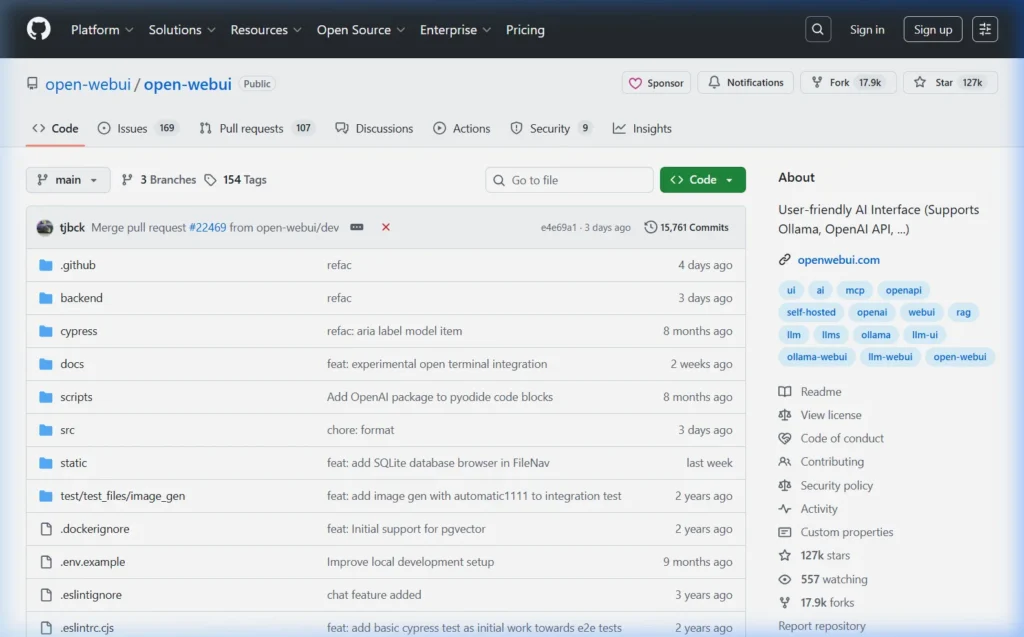
Yes, completely free. Open WebUI is open-source software released under the MIT License. There are no paid tiers, no subscriptions, and no usage limits. You can use it commercially, self-host it for your entire team, and modify the code however you like. Check the project at github.com/open-webui/open-webui.
Does Open WebUI send data anywhere?
No. All processing happens on your local machine. Open WebUI connects to your local Ollama instance — never to external servers. Your conversations, uploaded files, and settings stay entirely on your device. This makes it ideal for handling sensitive business data, personal information, or confidential documents.
Can I use Open WebUI with cloud AI APIs as well?
Yes. Open WebUI supports connecting to OpenAI-compatible APIs (including actual OpenAI, Anthropic Claude via compatible wrappers, and others). Go to Admin Panel → Settings → Connections and add your API key. You can then switch between local Ollama models and cloud models from the same interface.
Does Open WebUI work on mobile?
Yes — the interface is fully responsive and works well on mobile browsers. If you’re running Open WebUI on a home server or desktop, you can access it from your phone’s browser by navigating to the local IP address. Some users add it to their phone’s home screen as a Progressive Web App (PWA).
What’s the difference between pip install and Docker install?
The pip method is simpler to get started and easier to manage for a single user on a personal computer. Docker provides better isolation, easier updates, and is the preferred choice for home servers, NAS devices, or multi-user setups. Both methods give you the identical Open WebUI experience — it’s purely an installation preference.
Can I run multiple AI models simultaneously in Open WebUI?
Yes. You can open multiple browser tabs, each with a different model selected. Ollama will load both models into memory (if you have enough RAM/VRAM) and they run concurrently. Use ollama ps in terminal to see all currently loaded models and their memory usage.
Questions about your specific setup? Leave a comment below — I respond to every reader question about Open WebUI and Ollama.
About this guide: Tested with Open WebUI v0.5.x on Windows 11, macOS Sequoia, and Ubuntu 22.04. Both pip and Docker installation methods verified. Last updated March 2026.