
Linux is where Ollama shines brightest. Native performance, full control over GPU acceleration, no antivirus interference, and the ability to run Ollama as a systemd service that starts automatically with your machine — Linux gives you the best possible Ollama experience.
I run Ollama on an Ubuntu 22.04 server in my home lab, and it has been rock solid for over a year. This guide covers installation on the most common Linux distributions — Ubuntu, Debian, Fedora, Arch, and CentOS/RHEL — along with GPU setup, service configuration, and the fixes to the errors you’ll actually encounter.
Linux System Requirements for Ollama
Minimum Requirements (CPU only)
- OS: Any modern 64-bit Linux distribution (kernel 3.10+)
- RAM: 8 GB
- Storage: 10 GB+ free space (models are 2–40 GB each)
- CPU: x86_64 or ARM64 architecture
Recommended (with NVIDIA GPU)
- RAM: 16 GB+
- GPU: NVIDIA with 6 GB+ VRAM (GTX 1060 or newer)
- NVIDIA Driver: 452.39 or newer
- CUDA: Version 11.3+ (Ollama installs this automatically)
Supported Linux Distributions
| Distribution | Versions | GPU Support | Notes |
|---|---|---|---|
| Ubuntu | 20.04, 22.04, 24.04 | NVIDIA + AMD ROCm | Best supported, recommended |
| Debian | 11 (Bullseye), 12 (Bookworm) | NVIDIA | Works identically to Ubuntu |
| Fedora | 38, 39, 40, 41 | NVIDIA + AMD ROCm | Full support |
| CentOS / RHEL | 8, 9 | NVIDIA | SELinux config may be needed |
| Arch Linux | Rolling release | NVIDIA + AMD | Available via AUR |
| Raspberry Pi (ARM) | Pi 4, Pi 5 (64-bit OS) | CPU only | Runs small models |
Method 1 — One-Line Install (Recommended for All Distros)
Ollama provides an official install script that works on every major Linux distribution. This is the fastest and most reliable method.
curl -fsSL https://ollama.com/install.sh | shRun this in your terminal. The script will:
- Detect your Linux distribution and architecture
- Download the correct Ollama binary
- Install it to
/usr/local/bin/ollama - Detect if you have an NVIDIA or AMD GPU and configure it automatically
- Create a
systemdservice so Ollama starts automatically on boot - Start the Ollama service immediately
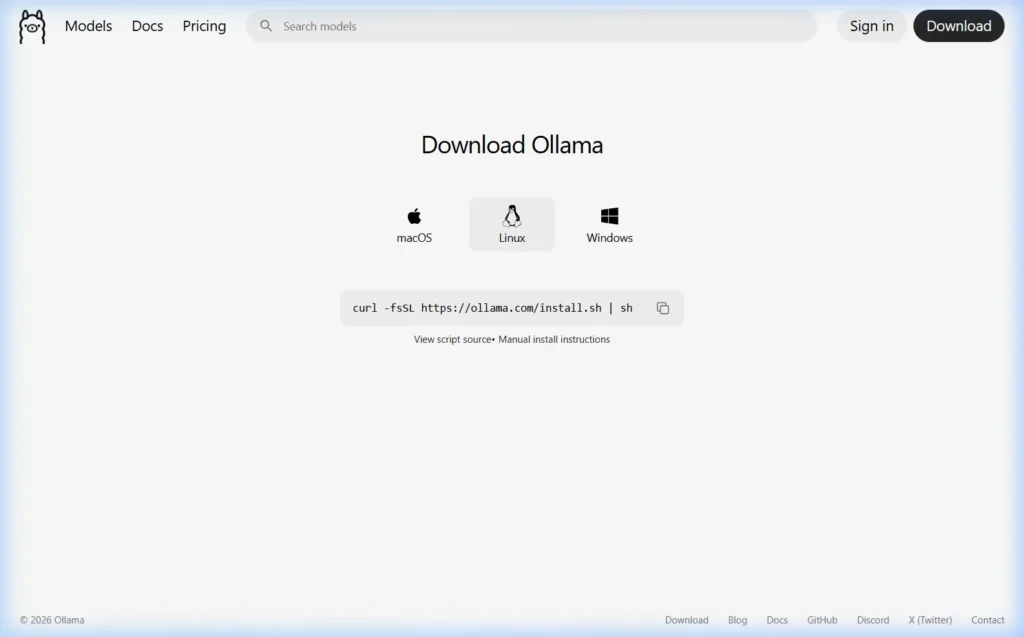
When the script finishes, verify the installation:
ollama --version
# Expected: ollama version 0.6.2 (or similar)

# Check if the service is running
systemctl status ollama
You should see Active: active (running) in the service status output.
Method 2 — Manual Install (Without the Script)
If you prefer to install manually — or if you’re on a restricted system where running install scripts isn’t allowed — here’s the step-by-step process.
Download the Ollama Binary
# For x86_64 (most Linux PCs and servers)
sudo curl -L https://ollama.com/download/ollama-linux-amd64 -o /usr/local/bin/ollama

# For ARM64 (Raspberry Pi, ARM servers)
sudo curl -L https://ollama.com/download/ollama-linux-arm64 -o /usr/local/bin/ollama

# Make it executable
sudo chmod +x /usr/local/bin/ollama
Create a Dedicated System User
For security, Ollama should run as its own system user — not as root.
sudo useradd -r -s /bin/false -m -d /usr/share/ollama ollamaCreate the systemd Service File
sudo nano /etc/systemd/system/ollama.servicePaste the following content:
[Unit]
Description=Ollama Service
After=network-online.target

[Service]
ExecStart=/usr/local/bin/ollama serve
User=ollama
Group=ollama
Restart=always
RestartSec=3
Environment="PATH=/usr/local/sbin:/usr/local/bin:/usr/sbin:/usr/bin:/sbin:/bin"

[Install]
WantedBy=default.target
Save and close the file (Ctrl+X, then Y, then Enter in nano). Then enable and start the service:
sudo systemctl daemon-reload
sudo systemctl enable ollama
sudo systemctl start ollama
sudo systemctl status ollama
Method 3 — Install on Arch Linux via AUR
# Using yay
yay -S ollama

# Using paru
paru -S ollama

# Enable and start the service
sudo systemctl enable --now ollama
Arch users can also install ollama-cuda for NVIDIA GPU support or ollama-rocm for AMD GPU support directly from the AUR.
Set Up NVIDIA GPU Acceleration on Linux
GPU acceleration on Linux makes Ollama dramatically faster — we’re talking 20–80 tokens per second instead of 3–8. If you have an NVIDIA GPU, here’s exactly how to set it up.
Step 1 — Install NVIDIA Drivers on Ubuntu/Debian
# Check which NVIDIA GPU you have
lspci | grep -i nvidia

# Install the recommended driver automatically
sudo ubuntu-drivers autoinstall

# OR install a specific version (replace 535 with your recommended version)
sudo apt install nvidia-driver-535

# Reboot after installation
sudo reboot
Step 1 — Install NVIDIA Drivers on Fedora
# Enable RPM Fusion (required for NVIDIA drivers on Fedora)
sudo dnf install https://download1.rpmfusion.org/free/fedora/rpmfusion-free-release-$(rpm -E %fedora).noarch.rpm
sudo dnf install https://download1.rpmfusion.org/nonfree/fedora/rpmfusion-nonfree-release-$(rpm -E %fedora).noarch.rpm

# Install NVIDIA driver
sudo dnf install akmod-nvidia

# Reboot
sudo reboot
Step 2 — Verify NVIDIA Drivers Are Working
nvidia-smiYou should see a table showing your GPU model, driver version, CUDA version, and VRAM usage. If this command returns output, your GPU is ready for Ollama.
Step 3 — Add the Ollama User to the GPU Group
For the Ollama service to access the GPU, its user needs the right permissions:
sudo usermod -a -G render ollama
sudo usermod -a -G video ollama

# Restart the Ollama service
sudo systemctl restart ollama
Step 4 — Confirm GPU Is Being Used
Start a model and in a second terminal, check:
# Check Ollama process
ollama ps

# Monitor GPU usage in real time
watch -n 1 nvidia-smi
If GPU is working, you’ll see GPU memory being consumed in nvidia-smi output when a model is loaded.
Set Up AMD GPU Acceleration on Linux (ROCm)
Ollama supports AMD GPU acceleration through ROCm on Linux. Currently supported AMD GPUs include the RX 5000, 6000, and 7000 series.
# Ubuntu/Debian — Install ROCm
sudo apt update
sudo apt install -y rocm-hip-libraries

# Add your user to the video and render groups
sudo usermod -a -G video $USER
sudo usermod -a -G render $USER

# Also add the ollama service user
sudo usermod -a -G video ollama
sudo usermod -a -G render ollama

# Restart Ollama
sudo systemctl restart ollama
After setup, run a model and check ollama ps — you should see GPU listed in the output.
Run Your First AI Model on Linux
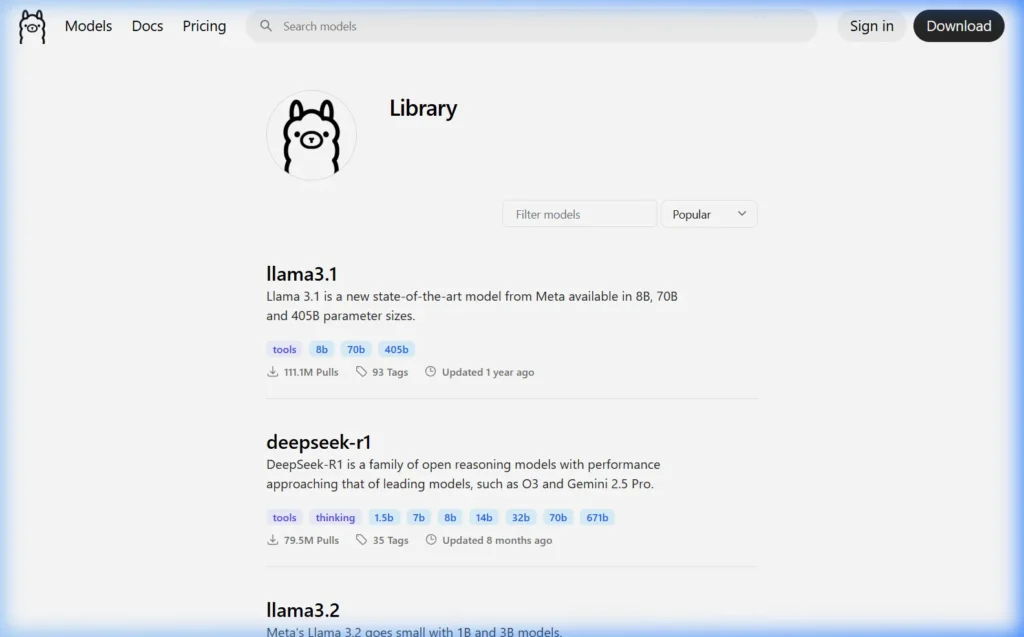
# Run Llama 3.1 (downloads ~4.7 GB on first run)
ollama run llama3.1

# Start a chat — type your message after the prompt
>>> Tell me about running AI locally on Linux
Recommended Models by RAM Size
| RAM / VRAM | Best Model | Command |
|---|---|---|
| 8 GB RAM (CPU) | Phi-3 Mini | ollama run phi3:mini |
| 16 GB RAM (CPU) | Mistral 7B | ollama run mistral |
| 6 GB VRAM (GPU) | Llama 3.1 8B | ollama run llama3.1 |
| 12 GB VRAM (GPU) | Llama 3.1 8B or Gemma 27B | ollama run gemma3:27b |
| 24 GB VRAM (GPU) | DeepSeek-R1 32B | ollama run deepseek-r1:32b |
Important Configuration: Environment Variables
When Ollama runs as a systemd service, you configure it through the service’s environment file — not your shell’s .bashrc.
Edit the Ollama service environment
sudo systemctl edit ollamaThis opens a special override file. Add your environment variables inside the [Service] block:
[Service]
# Change where models are stored (if C: equivalent drive is too small)
Environment="OLLAMA_MODELS=/mnt/data/ollama-models"

# Allow access from other computers on your network
Environment="OLLAMA_HOST=0.0.0.0:11434"

# Set max parallel requests
Environment="OLLAMA_NUM_PARALLEL=4"

# Keep models in memory longer (default is 5 minutes)
Environment="OLLAMA_KEEP_ALIVE=30m"
Save (Ctrl+X → Y → Enter), then apply:
sudo systemctl daemon-reload
sudo systemctl restart ollama
Make Ollama Accessible to Other Computers on Your Network
By default, Ollama only listens on localhost. To allow other machines (like your laptop connecting to a home server running Ollama) to use it, set OLLAMA_HOST=0.0.0.0:11434 as shown above, then open the firewall:
# Ubuntu/Debian with UFW
sudo ufw allow 11434/tcp

# Fedora/CentOS with firewalld
sudo firewall-cmd --permanent --add-port=11434/tcp
sudo firewall-cmd --reload
Essential Ollama Commands on Linux
# Check Ollama version
ollama --version

# Start the server (if not auto-starting)
ollama serve

# Download a model
ollama pull mistral

# Run a model (downloads if not already present)
ollama run llama3.1

# List all downloaded models
ollama list

# Remove a model to free disk space
ollama rm phi3

# Check which models are loaded in memory
ollama ps

# Check service logs in real time
journalctl -u ollama -f

# Restart the Ollama service
sudo systemctl restart ollama
Common Ollama Errors on Linux — and How to Fix Them
Error: “permission denied” when running Ollama
The binary is not executable. Fix:
sudo chmod +x /usr/local/bin/ollamaService fails to start — “Failed to connect to bus”
This happens in containers or minimal environments without systemd. Run Ollama directly instead:
ollama serve &GPU not detected after driver installation
Check three things in order:
# 1. Is the driver loaded?
nvidia-smi

# 2. Does the ollama user have GPU access?
id ollama
# Should show: groups=...,render,video

# 3. Enable debug logging to see what Ollama detects
OLLAMA_DEBUG=1 ollama serve 2>&1 | head -50
SELinux blocking Ollama on Fedora/RHEL/CentOS
SELinux policies on enterprise Linux distros can block Ollama. Check for denials:
sudo ausearch -m avc -ts recent | grep ollamaIf you see SELinux denials, the quickest fix is to set SELinux to permissive mode for testing (not recommended for production servers), or create a custom SELinux policy for Ollama:
# Temporary test fix
sudo setenforce 0

# Permanent fix — create custom policy
sudo ausearch -m avc -ts recent | audit2allow -M ollama-policy
sudo semodule -i ollama-policy.pp
Port 11434 already in use
# Find what is using port 11434
sudo lsof -i :11434

# Kill the process (replace PID with actual number)
sudo kill -9 PID

# Or change Ollama's port
sudo systemctl edit ollama
# Add: Environment="OLLAMA_HOST=0.0.0.0:11435"
Incorrect CUDA version
Ollama requires CUDA 11.3 minimum. Check your version:
nvcc --version
nvidia-smi | grep CUDA
If CUDA is outdated, update your NVIDIA drivers — the driver update includes a compatible CUDA version automatically.
Running Ollama in Docker on Linux
If you prefer containerized deployments (common in home labs and servers), Ollama has official Docker images.
CPU-only Docker deployment
docker run -d \
  -v ollama:/root/.ollama \
  -p 11434:11434 \
  --name ollama \
  ollama/ollama
NVIDIA GPU Docker deployment
# Install NVIDIA Container Toolkit first
curl -fsSL https://nvidia.github.io/libnvidia-container/gpgkey | sudo gpg --dearmor -o /usr/share/keyrings/nvidia-container-toolkit-keyring.gpg
curl -s -L https://nvidia.github.io/libnvidia-container/stable/deb/nvidia-container-toolkit.list | sed 's#deb https://#deb [signed-by=/usr/share/keyrings/nvidia-container-toolkit-keyring.gpg] https://#g' | sudo tee /etc/apt/sources.list.d/nvidia-container-toolkit.list
sudo apt-get update && sudo apt-get install -y nvidia-container-toolkit
sudo nvidia-ctk runtime configure --runtime=docker
sudo systemctl restart docker

# Run Ollama with GPU access
docker run -d \
  --gpus=all \
  -v ollama:/root/.ollama \
  -p 11434:11434 \
  --name ollama \
  ollama/ollama
Frequently Asked Questions
Does Ollama work on Ubuntu 20.04?
Yes, fully. Ubuntu 20.04 LTS is officially supported. The one-line install script handles it automatically. Ubuntu 22.04 and 24.04 are also fully supported — I’d recommend 22.04 or 24.04 for new setups since they have better driver support.
Can I run Ollama on a headless Linux server?
Absolutely — this is one of the best use cases for Ollama on Linux. A headless server running Ollama as a systemd service is the perfect private AI backend. Install Open WebUI on a separate machine (or run it on the same server) and access your models from any browser on your network. Full guide: Setting Up Ollama as a Network AI Server →
How do I update Ollama on Linux?
Re-run the install script — it updates automatically while preserving all your downloaded models:
curl -fsSL https://ollama.com/install.sh | shHow do I uninstall Ollama on Linux?
# Stop and disable the service
sudo systemctl stop ollama
sudo systemctl disable ollama

# Remove the binary
sudo rm /usr/local/bin/ollama

# Remove the service file
sudo rm /etc/systemd/system/ollama.service
sudo systemctl daemon-reload

# Remove downloaded models (optional)
rm -rf ~/.ollama

# Remove the ollama user (if created)
sudo userdel ollama
Can Ollama run on a Raspberry Pi?
Yes, on 64-bit Raspberry Pi OS (Pi 4 with 8 GB RAM or Pi 5). The install script works on ARM64. Stick to very small models like Phi-3 Mini (2.3 GB) or TinyLlama — full-size 7B models will be extremely slow and may cause memory issues on Pi hardware.
Does Ollama work inside WSL2 on Windows?
Yes, with GPU passthrough. WSL2 supports NVIDIA GPU acceleration via CUDA. Install the NVIDIA driver for WSL2 on the Windows host, then run the standard Linux install script inside your WSL2 environment. Native Windows installation (without WSL2) is generally more straightforward.
What to Do Next
Running into a Linux-specific issue not covered here? Drop the exact error message and your distro in the comments — I’ll help you troubleshoot it.
About this guide: Tested on Ubuntu 22.04 LTS (with NVIDIA RTX 3080), Fedora 40, Arch Linux, Raspberry Pi 5 (8 GB), and inside Docker containers. All steps verified March 2026 with Ollama 0.6.x.