
I remember the first time I tried to install Ollama on Windows. I was half-expecting it to involve some complicated developer setup — compiling code, setting environment paths, the whole mess.
It took me less than 5 minutes. That includes the time it took me to find my password to open PowerShell.
This guide will walk you through installing Ollama on Windows 10 or Windows 11, step by step, with real screenshots. By the end, you will have a real AI model running on your own computer — no cloud, no subscriptions, no limits.
Before You Start — Windows System Requirements
Before installing Ollama, let’s make sure your PC can handle it. Good news — the requirements are not demanding at all.
Minimum Requirements (Ollama will work)
- OS: Windows 10 (version 1903+) or Windows 11
- RAM: 8 GB
- Storage: 10 GB+ free disk space
- Processor: Any modern 64-bit CPU (Intel or AMD)
- GPU: Not required — CPU-only works
At this level you can run Phi-3 Mini or Gemma 2B. Replies take 15–30 seconds each.
Recommended (Comfortable experience)
- RAM: 16 GB+
- Storage: 50 GB+ free
- GPU: NVIDIA with 6 GB+ VRAM (GTX 1060 or newer)
With a GPU, Llama 3.1 8B responds in 2–5 seconds — smooth everyday use.
Best Results
- RAM: 32 GB+
- GPU: NVIDIA RTX 3060/4060 with 12+ GB VRAM
- Storage: 100+ GB SSD
Not sure what GPU you have? Press
Windows + R, typedxdiag, press Enter → check the Display tab.
Step-by-Step: How to Install Ollama on Windows
Step 1 — Go to the Official Download Page
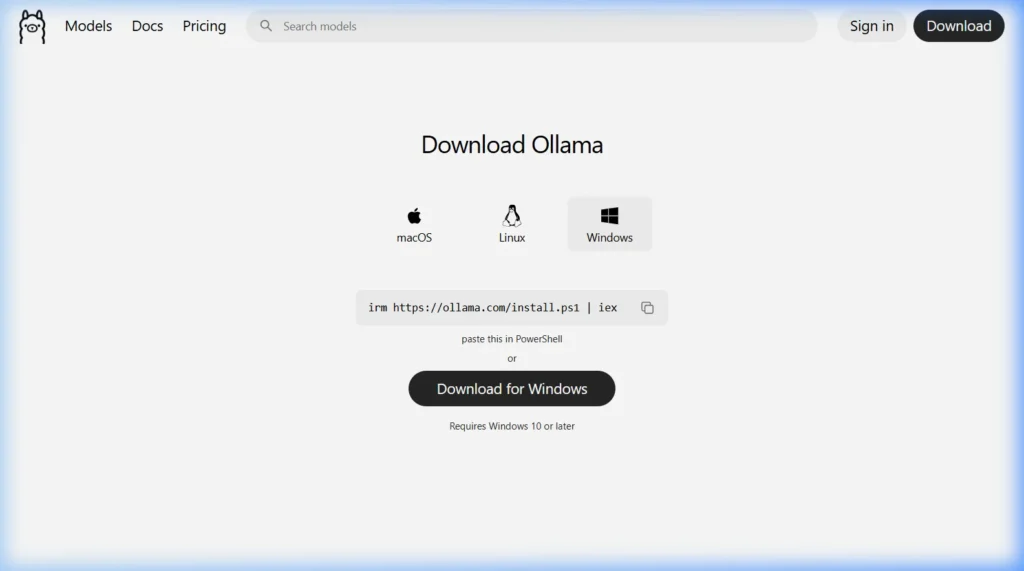
Open your browser and go to: https://ollama.com/download
Click the Windows tab.
Step 2 — Download Ollama for Windows
Option A — PowerShell (Fastest method):
iex (irm https://ollama.com/install.ps1)Open PowerShell as Administrator → paste the command → press Enter. Ollama installs automatically.
Option B — Direct Download: Click “Download for Windows” to get the OllamaSetup.exe installer file.
Which should I choose? Either works. PowerShell is faster and fully automatic. The .exe is easier if you prefer a visual install wizard.
Step 3 — Run the Installer (.exe method)
- Find
OllamaSetup.exein your Downloads folder - Double-click to run it
- If SmartScreen appears → click “More info” → “Run anyway”
- Follow the wizard: Next → Install → Finish
No admin rights needed. Ollama installs to your user folder — it does not touch system files.
Step 4 — Verify the Installation Worked
Open PowerShell and run:
ollama --versionYou should see something like ollama version 0.6.2. Also look for the Ollama llama icon in your system tray (bottom-right of the taskbar).
If you get “command not found”, close PowerShell and reopen it — it needs to reload the PATH after installation.
Download and Run Your First AI Model on Windows
Which Model Should You Try First?
| Model | Size | Best For | Min RAM |
|---|---|---|---|
phi3 | 2.3 GB | Fast replies, low-spec PCs | 8 GB |
mistral | 4.1 GB | General tasks | 8 GB |
llama3.1 | 4.7 GB | Best overall quality | 16 GB |
deepseek-r1 | 4.7 GB | Reasoning & analysis | 16 GB |
Run Your First Model
ollama run mistralOllama downloads the model (~4 GB), then opens a live chat. When you see >>> Send a message (/? for help), type anything and press Enter. That’s your first free, private, local AI conversation.
Useful Ollama Commands for Windows
# List all downloaded models
ollama list

# Download a model without running it
ollama pull llama3.1

# Delete a model to free disk space
ollama rm mistral

# See which models are currently loaded
ollama ps

# Stop a running model
ollama stop mistral
Change Where Ollama Stores Models
Default: C:\Users\YourName\.ollama\models. To move to another drive: Search “Environment Variables” → System Variables → New → Name: OLLAMA_MODELS, Value: D:\OllamaModels → OK → Restart PC.
Fixing Common Ollama Errors on Windows
“Ollama command not found” after installation
Close PowerShell and reopen it (the PATH needs to refresh). Still broken? Restart the PC. Or manually add C:\Users\YourName\AppData\Local\Programs\Ollama to your PATH environment variable.
Windows Defender blocks the installer
Click More Info → Run Anyway. Ollama is fully open-source on GitHub — every line of code is publicly visible.
Model downloads are very slow
Cancel and re-run ollama pull — it picks up exactly where it stopped. No re-downloading from zero.
GPU not being used (CPU-only mode)
Install the latest NVIDIA drivers and CUDA toolkit. Re-run your model — Ollama auto-detects the GPU after drivers install.
“Out of memory” error
Switch to a lighter model that fits your RAM:
ollama run phi3Frequently Asked Questions
Does Ollama work on Windows 10?
Yes. Requires Windows 10 version 1903 (May 2019 Update) or later.
Do I need Python to use Ollama?
No. Ollama is a standalone app. Python is only needed if you want to write code that calls the Ollama API.
Does Ollama need internet after installing?
Only to download models the first time. After that, all AI conversations run 100% offline — forever.
Does Ollama auto-start with Windows?
Yes. It installs as a startup service. The llama icon in your system tray confirms it’s running.
How do I uninstall Ollama?
Settings → Apps → “Ollama” → Uninstall. Delete C:\Users\YourName\.ollama to also remove all downloaded models.
Is Ollama safe to install on Windows?
Yes. MIT-licensed, no data collection, no background internet activity during AI use, no admin rights needed.
Have a question about your Windows setup? Drop it in the comments and I’ll help you sort it out.
About this guide: Tested on Windows 10 (22H2) and Windows 11 (23H2) with CPU-only and NVIDIA GPU setups. All steps verified March 2026 using Ollama version 0.6.x.