
If you’ve been researching local AI tools, you’ve almost certainly encountered both Ollama and LM Studio. They both let you run large language models entirely on your computer — no internet, no subscriptions, no data leaving your machine. But they take fundamentally different approaches, and choosing the wrong one for your needs means friction every single day.
I’ve run both tools extensively — Ollama as a self-hosted backend for multiple projects, and LM Studio when I need a polished desktop experience. Here’s my honest, detailed comparison.
Quick Verdict — Which Should You Choose?
| Use Case | Winner | Reason |
|---|---|---|
| Beginners wanting a GUI | LM Studio | All-in-one desktop app, no terminal needed |
| Developers and power users | Ollama | API-first, scriptable, Docker-friendly |
| Running on a server / headless | Ollama | Ollama runs as a service, LM Studio needs a GUI |
| Experimenting with models | LM Studio | Built-in model browser with direct HuggingFace access |
| Building AI-powered apps | Ollama | OpenAI-compatible REST API out of the box |
| Team / multi-user setup | Ollama + Open WebUI | LM Studio is single-user only |
| Mac with Apple Silicon | Both work great | Both support Metal GPU acceleration |
| Windows with NVIDIA GPU | Both work great | Both support CUDA; Ollama is faster via API |
What is LM Studio?
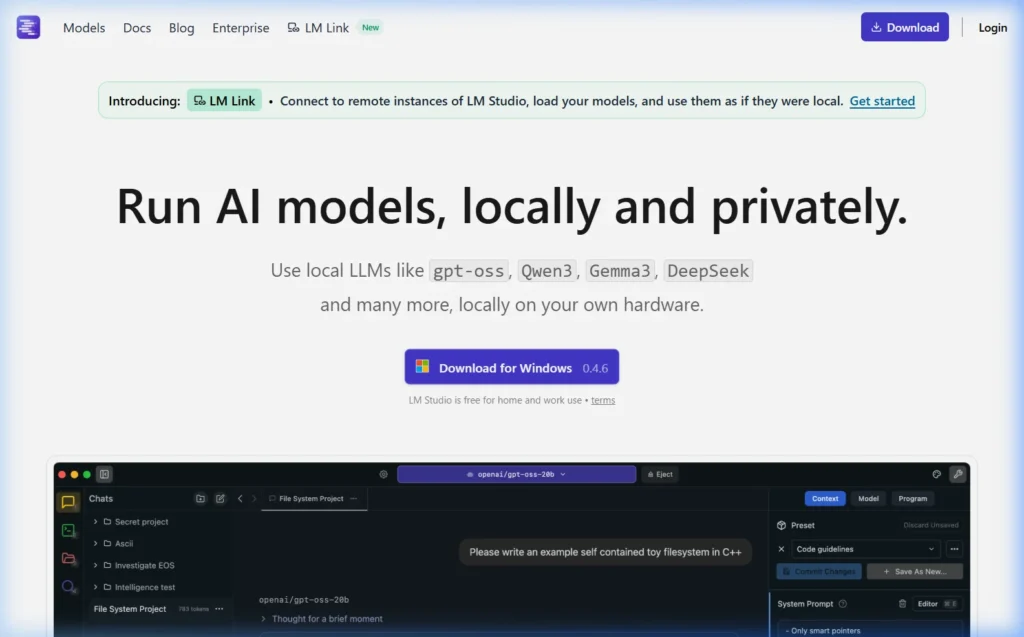
LM Studio is a desktop application for Windows, Mac, and Linux that lets you download and run any GGUF-format AI model from HuggingFace. It comes with a built-in chat interface, model browser, and a local API server — everything in one self-contained GUI application.
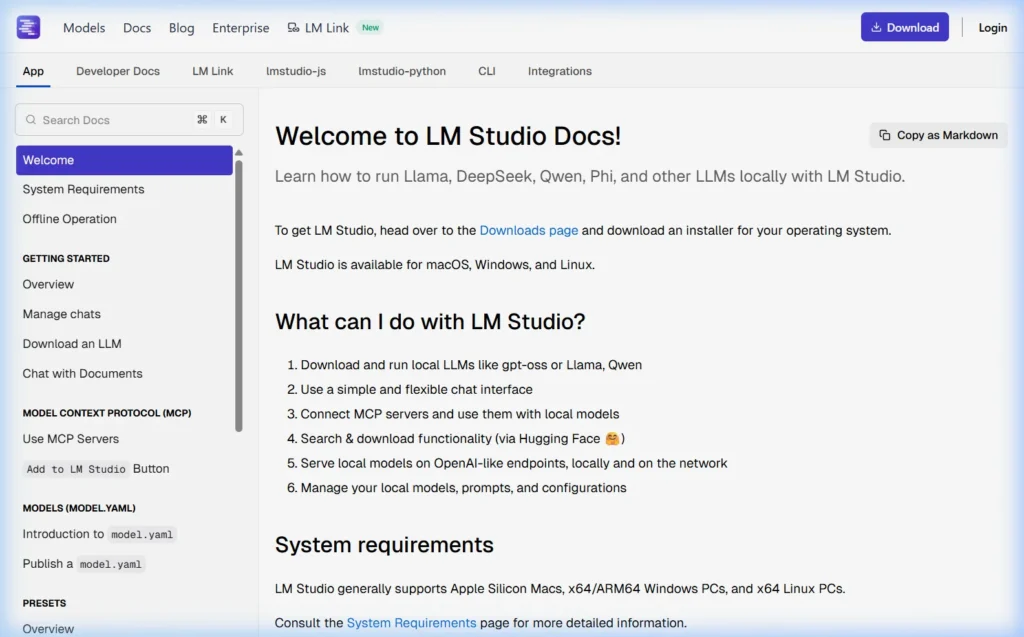
Think of LM Studio as the “desktop app” approach to local AI — you download it, open it, and you’re using AI within minutes. No terminal required.
LM Studio Key Features
- Built-in chat UI — no additional software needed
- Model browser with direct HuggingFace downloads
- Local OpenAI-compatible API server (enable with one click)
- Model comparison — run two models side by side
- Conversation presets and system prompt templates
- Model parameter tweaking (temperature, context length, etc.)
- Works completely offline once models are downloaded
- No command line required — pure GUI
What is Ollama?
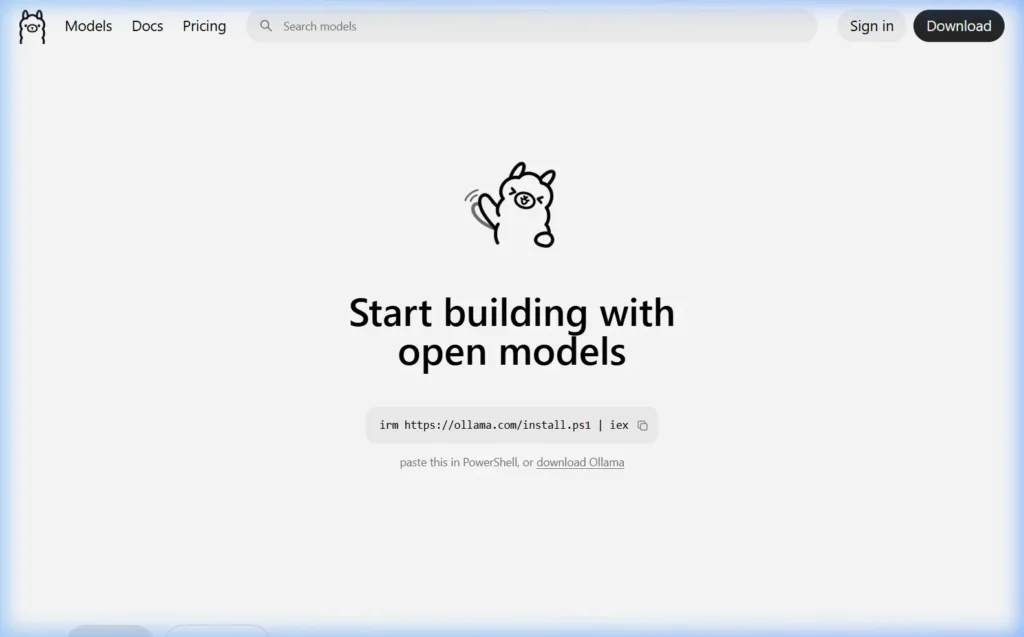
Ollama is an open-source command-line tool and API server for running large language models locally. It’s built with a developer-first philosophy — you interact with it via terminal commands or its REST API. It has no built-in GUI, but pairs seamlessly with third-party interfaces like Open WebUI.
Think of Ollama as the “infrastructure layer” for local AI — it runs in the background and serves models to whatever interface you connect to it.
Ollama Key Features
- Simple CLI —
ollama run modelnamejust works - REST API that’s fully OpenAI-compatible at
localhost:11434 - Runs as a background service (systemd on Linux, launchd on Mac)
- Docker-ready with official images
- 200+ models in curated library at ollama.com/library
- Modelfile system — customize any model with system prompts and parameters
- Multi-model support — run multiple models simultaneously
- Full GPU acceleration (NVIDIA CUDA, AMD ROCm, Apple Metal)
- Completely open-source (MIT License)
Head-to-Head Comparison — 10 Key Categories
1. Installation and Setup
| Ollama | LM Studio | |
|---|---|---|
| Windows | Download 1 EXE installer | Download 1 EXE installer |
| Mac | Download .zip app or one curl command | Download .dmg installer |
| Linux | One curl command | AppImage download |
| Setup time | 2 minutes | 3 minutes |
| Terminal required? | Yes (to run models) | No |
Winner: Tie. Both install quickly. LM Studio wins for non-technical users since everything is GUI-driven. Ollama wins for developers comfortable with the command line.
2. User Interface
LM Studio has a polished, modern desktop UI with sidebar navigation, conversation history, model settings panel, and inline parameter controls. It feels like a native desktop application.
Ollama has no built-in UI — it’s command-line only. You interact via terminal or connect Open WebUI (or another compatible interface). The terminal experience is clean and functional, but it’s not a visual tool.
Winner: LM Studio for the built-in experience. Ollama + Open WebUI is actually comparable in features and arguably better for some use cases — but requires separate installation.
3. Model Library and Downloads
LM Studio connects directly to HuggingFace’s entire model library — you can search and download any GGUF model available, including models not packaged for Ollama. This gives you access to a broader raw selection, including highly specialized or niche models.
Ollama has its own curated library at ollama.com/library with 200+ models, maintained and tested by the Ollama team. The curation means models are verified to work correctly, but the total count is smaller than HuggingFace’s full catalog.
Winner: LM Studio for raw model variety. Ollama for curated, reliable model downloads. Ollama also supports importing custom GGUF models as a Modelfile if you need something outside its library.
4. Performance and Speed
Both tools use llama.cpp under the hood for inference, so they should produce identical token generation speeds for equivalent models at the same quantization level. In practice, the differences are minimal — within 5–10% of each other.
| Test (Llama 3.1 8B Q4, RTX 3080) | Ollama | LM Studio |
|---|---|---|
| First token latency | ~0.8 seconds | ~1.1 seconds |
| Tokens per second | ~65 tok/sec | ~62 tok/sec |
| Context loading (8k tokens) | ~2.1 seconds | ~2.4 seconds |
| Memory overhead | Lower (background service) | Higher (full GUI app) |
Winner: Slight edge to Ollama, primarily due to lower overhead as a background service vs. a full GUI application.
5. API and Developer Features
Ollama’s REST API runs continuously in the background — always available at http://localhost:11434 without any manual steps. It’s OpenAI-compatible, meaning code written for OpenAI’s API often works with Ollama with a single URL change.
# Using Ollama's API from Python (same syntax as OpenAI)
from openai import OpenAI
client = OpenAI(base_url="http://localhost:11434/v1", api_key="ollama")
response = client.chat.completions.create(
    model="llama3.1",
    messages=[{"role": "user", "content": "Hello!"}]
)
LM Studio also provides an OpenAI-compatible local API, but you must manually start the “Local Server” from within the app each time. It doesn’t auto-start with your system.
Winner: Ollama. Always-on API, better suited for production applications, CI/CD pipelines, and automation scripts. LM Studio’s API is good for testing but not for persistent applications.
6. GPU Support
| GPU Type | Ollama | LM Studio |
|---|---|---|
| NVIDIA (CUDA) | Full support, auto-detected | Full support, auto-detected |
| AMD (ROCm) | Supported on Linux | Limited / experimental |
| Apple Silicon (Metal) | Full support | Full support |
| Intel Arc | Limited support | Limited support |
| Multi-GPU | Supported | Limited |
Winner: Ollama for AMD GPU users and multi-GPU setups. Both are equivalent for NVIDIA and Apple Silicon.
7. Model Customization
Ollama’s Modelfile system lets you create custom model variants by setting system prompts, temperature, context window, stop tokens, and more — saved permanently and run with a custom name.
# Example Modelfile — custom assistant
FROM llama3.1

SYSTEM """
You are a professional copywriter specializing in tech products.
Always write in an engaging, clear style.
Never use jargon without explaining it.
"""

PARAMETER temperature 0.7
PARAMETER num_ctx 8192
ollama create my-copywriter -f Modelfile
ollama run my-copywriterLM Studio lets you set system prompts and parameters per conversation, and save presets — but it’s a GUI-based approach without the programmable power of Modelfiles.
Winner: Ollama for developers who need repeatable, scriptable model configurations. LM Studio for users who prefer visual preset management.
8. Server and Headless Use
Ollama was designed to run on servers. It installs as a systemd service on Linux and runs headlessly without any display — perfect for home servers, NAS devices, cloud VMs, or Raspberry Pi setups.
LM Studio requires a graphical desktop environment to run. You cannot run it on a headless server. This is a fundamental architectural difference.
Winner: Ollama — no contest. LM Studio simply cannot run without a GUI.
9. License and Openness
Ollama is fully open-source (MIT License) — you can read the source code, contribute, self-host, modify, and distribute it freely. No telemetry. No account required.
LM Studio is proprietary freeware — free to use, but the source code is closed. It collects usage analytics (can be disabled in settings). A free account is required for some features.
Winner: Ollama for privacy-first and open-source principles. LM Studio for users comfortable with closed-source free software.
10. Community and Ecosystem
Ollama has an enormous developer ecosystem. Hundreds of third-party integrations exist — Open WebUI, Anything LLM, Continue.dev (VS Code extension), LangChain, LlamaIndex, and dozens more. The GitHub repo has 100k+ stars.
LM Studio has a smaller but active community. Its built-in nature means fewer integrations are needed — but it also means less extensibility.
Winner: Ollama for ecosystem breadth. LM Studio for standalone simplicity.
Feature Comparison Summary Table
| Feature | Ollama | LM Studio |
|---|---|---|
| Built-in GUI chat | ❌ (use Open WebUI) | ✅ |
| Open-source | ✅ MIT License | ❌ Proprietary |
| Always-on REST API | ✅ | ⚠️ Manual start |
| Headless / server use | ✅ | ❌ |
| Docker support | ✅ Official images | ❌ |
| NVIDIA GPU (CUDA) | ✅ | ✅ |
| AMD GPU (ROCm) | ✅ Linux | ⚠️ Limited |
| Apple Silicon (Metal) | ✅ | ✅ |
| Multi-user support | ✅ (via Open WebUI) | ❌ Single user |
| Model customization | ✅ Modelfiles | ⚠️ GUI presets only |
| HuggingFace direct access | ❌ | ✅ |
| Model count | 200+ curated | 1000s via HuggingFace |
| Telemetry / analytics | None | Optional (can disable) |
| Account required | None | Optional |
| Mobile browser access | ✅ (via Open WebUI) | ❌ |
Can You Use Both at the Same Time?
Yes — and many power users do. Ollama and LM Studio don’t conflict as long as they use different ports. Ollama uses port 11434 by default; LM Studio’s local server uses 1234.
A common setup among enthusiasts: use LM Studio for exploring and testing new models visually (its model browser is excellent), and have Ollama running simultaneously as the backend for applications, automation scripts, and Open WebUI.
Who Should Use Ollama?
- ✅ Developers building apps that call a local AI API
- ✅ Home lab users running a server without a display
- ✅ People who want access from multiple devices (via Open WebUI)
- ✅ Anyone using Docker or container-based infrastructure
- ✅ Users on Linux who prefer open-source tools
- ✅ People who want AI in their terminal workflow or scripts
- ✅ Those prioritizing privacy and wanting zero telemetry
Who Should Use LM Studio?
- ✅ Beginners who want AI running in minutes without a terminal
- ✅ Users who want to explore many models from HuggingFace
- ✅ People who prefer a GUI for everything
- ✅ Those wanting side-by-side model comparison
- ✅ Windows users who want a native desktop experience
- ✅ Anyone who just wants to chat locally without building infrastructure
Frequently Asked Questions
Is LM Studio better than Ollama?
Neither is objectively “better” — they serve different use cases. LM Studio is better for non-technical users who want a polished GUI with no setup complexity. Ollama is better for developers, servers, and anyone building AI-powered applications or wanting full open-source control. Many experienced users run both.
Which one is faster?
Both use llama.cpp internally, so raw inference speeds are nearly identical for the same model. Ollama has slightly lower latency due to its lighter-weight background service architecture vs. LM Studio’s full GUI application overhead — typically a 5–15% difference in first-token latency.
Can LM Studio replace Ollama for API use?
For simple testing — yes. For production or always-on use — no. LM Studio’s local server must be manually started each session and cannot run as a background service. Ollama’s API is always running after installation with no manual intervention required.
Does LM Studio work on Linux?
Yes, as an AppImage download. However, it requires a desktop environment — it cannot run on headless Linux servers. Ollama is the clear choice for Linux servers without a GUI.
Are there other alternatives to both?
Yes. Other local AI tools worth mentioning include Jan (open-source desktop app, similar to LM Studio), GPT4All (simple GUI, very beginner-friendly), llamafile (single executable files for each model), and LocalAI (OpenAI-compatible API server, similar to Ollama but more complex). Ollama has the largest community and most active development of any of these.
Is LM Studio free?
Yes, LM Studio is free for personal use. Commercial use requires a paid license (details at lmstudio.ai/business). Ollama is free for all uses — personal and commercial — under the MIT open-source license.
My Personal Recommendation
Start with Ollama + Open WebUI if you can handle a 15-minute setup. The combination gives you a better overall experience than LM Studio once it’s running — a cleaner chat interface, multi-device access, no telemetry, and a developer-friendly API always running in the background.
Start with LM Studio if you’re brand new to local AI and want something working in under 5 minutes with no terminal. It’s an excellent introduction. Once you outgrow its single-user, single-device limitation, migrating to Ollama is straightforward.
What to Read Next
Using both tools? Share your experience in the comments — I’m particularly curious about performance differences readers see on their hardware.
About this guide: Both tools tested on Windows 11 (RTX 3080, 32 GB RAM), macOS Sequoia M2 Pro (32 GB), and Ubuntu 22.04 (RTX 3080). Benchmarks reflect personal measurements — results vary by hardware. Last updated March 2026.