The Ollama terminal chat is useful, but the real power of Ollama is its REST API. Every time you type a message in the terminal, Ollama is actually processing an HTTP request under the hood — and you can send those same requests directly from your own code, scripts, and applications.
This means you can build AI-powered tools, automate text generation tasks, integrate local AI into existing projects, and create applications that run entirely offline — all for free, with no rate limits and no API keys to manage.
In this guide, I’ll walk you through Ollama’s entire API: using it with curl, Python, JavaScript/Node.js, and more. All examples are hands-on and immediately runnable.
Ollama API Basics — What You Need to Know
Ollama’s API server runs automatically when Ollama is installed. It listens at:
http://localhost:11434It offers two API flavors:
- Ollama native API — Ollama’s own format, with streaming support and full feature access
- OpenAI-compatible API — a drop-in replacement for OpenAI’s API at
/v1/endpoints, meaning any code written for OpenAI often works with zero changes
Verify the API is running:
curl http://localhost:11434
# Response: Ollama is running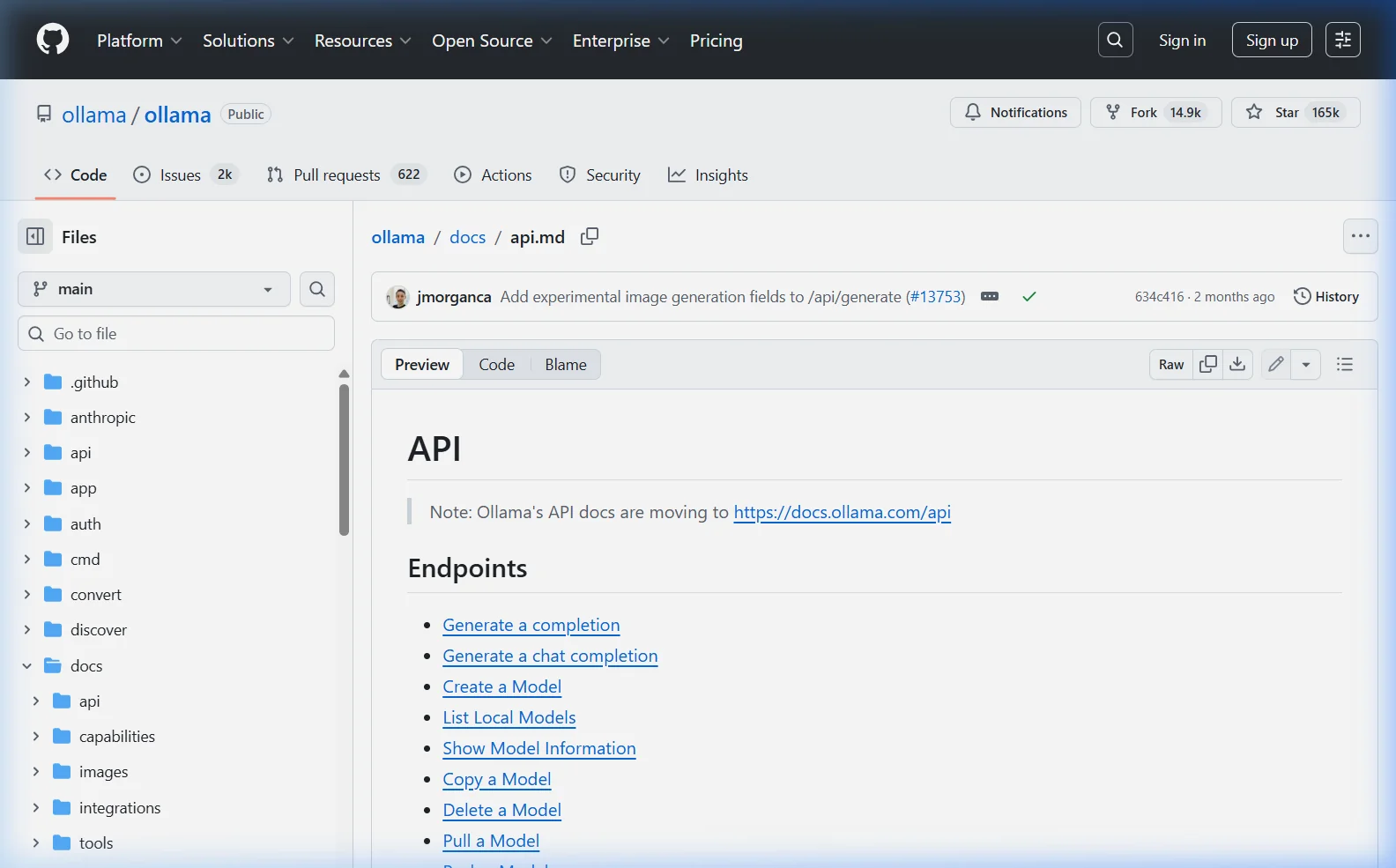
API Endpoints Reference
| Endpoint | Method | Purpose |
|---|---|---|
/api/generate | POST | Generate a completion (single turn) |
/api/chat | POST | Multi-turn chat with message history |
/api/embeddings | POST | Generate text embeddings |
/api/pull | POST | Download a model |
/api/push | POST | Upload a model to Ollama registry |
/api/create | POST | Create a model from a Modelfile |
/api/tags | GET | List all downloaded models |
/api/show | POST | Show model info and Modelfile |
/api/delete | DELETE | Delete a model |
/api/ps | GET | List currently running models |
/v1/chat/completions | POST | OpenAI-compatible chat endpoint |
/v1/models | GET | OpenAI-compatible model list |
Using the Ollama API with curl
curl is the fastest way to test any API. All examples below work on Windows (PowerShell / WSL), Mac, and Linux.
Basic completion — /api/generate
curl http://localhost:11434/api/generate \
  -d '{
    "model": "llama3.1",
    "prompt": "What is the capital of France?",
    "stream": false
  }'
Response:
{
  "model": "llama3.1",
  "response": "The capital of France is Paris.",
  "done": true,
  "total_duration": 1234567890,
  "eval_count": 9,
  "eval_duration": 987654321
}
Chat completion — /api/chat (multi-turn)
curl http://localhost:11434/api/chat \
  -d '{
    "model": "llama3.1",
    "messages": [
      { "role": "system", "content": "You are a helpful coding assistant." },
      { "role": "user", "content": "Write a Python function to reverse a string." }
    ],
    "stream": false
  }'
Streaming responses (tokens as they generate)
Remove "stream": false or set it to true — Ollama streams newline-delimited JSON:
curl http://localhost:11434/api/generate \
  -d '{
    "model": "llama3.1",
    "prompt": "Tell me a short story about a robot learning to paint."
  }'
# Each line of output is a JSON object with "response" and "done" fields
List available models
curl http://localhost:11434/api/tagsCheck running models
curl http://localhost:11434/api/psUsing the Ollama API with Python
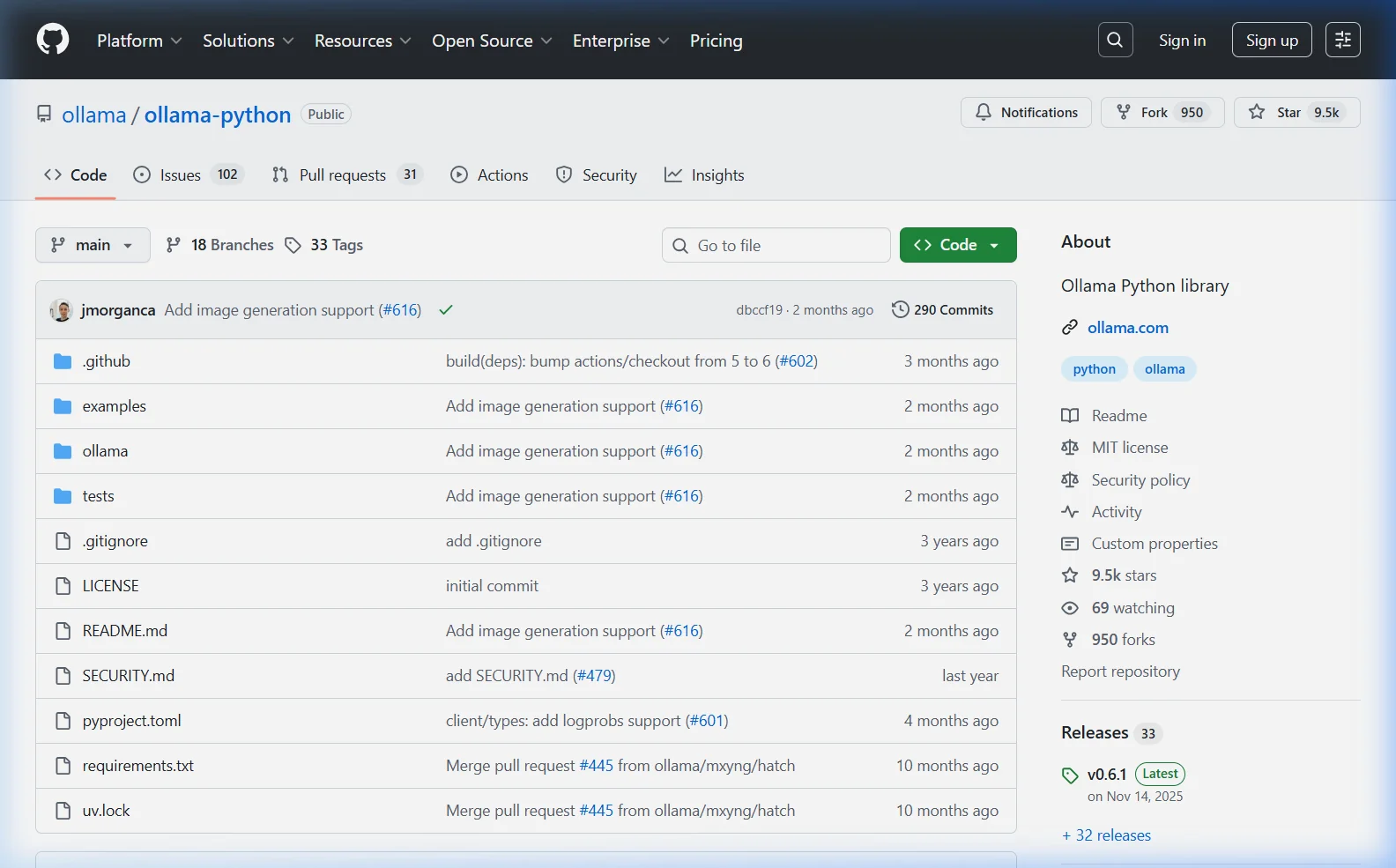
There are two approaches for Python: the official ollama library or the openai library pointed at Ollama’s compatible endpoint.
Method A — Official Ollama Python Library (Recommended)
pip install ollamaBasic Chat
import ollama

response = ollama.chat(
    model='llama3.1',
    messages=[
        {'role': 'user', 'content': 'Explain what machine learning is in simple terms.'}
    ]
)
print(response['message']['content'])
Streaming Response
import ollama

stream = ollama.chat(
    model='llama3.1',
    messages=[{'role': 'user', 'content': 'Write a haiku about autumn.'}],
    stream=True
)

for chunk in stream:
    print(chunk['message']['content'], end='', flush=True)
print()  # newline after output
Multi-turn Conversation
import ollama

conversation_history = []

def chat(user_message):
    conversation_history.append({
        'role': 'user',
        'content': user_message
    })

    response = ollama.chat(
        model='llama3.1',
        messages=conversation_history
    )

    assistant_message = response['message']['content']
    conversation_history.append({
        'role': 'assistant',
        'content': assistant_message
    })

    return assistant_message

# Example conversation
print(chat("My name is Sarah and I'm a software developer."))
print(chat("What's a good first project to build with AI?"))
print(chat("Can you give me a Python code skeleton for that?"))
Generate Text Embeddings
import ollama

# Get embeddings for a piece of text
result = ollama.embeddings(
    model='nomic-embed-text',
    prompt='Machine learning is the study of algorithms that improve through experience.'
)

embedding_vector = result['embedding']
print(f"Embedding dimensions: {len(embedding_vector)}")
# Output: Embedding dimensions: 768
List and Manage Models
import ollama

# List all downloaded models
models = ollama.list()
for model in models['models']:
    size_gb = round(model['size'] / 1e9, 1)
    print(f"{model['name']}: {size_gb} GB")

# Pull a new model
ollama.pull('phi3:mini')

# Delete a model
ollama.delete('phi3:mini')
Method B — Using the OpenAI Python Library with Ollama
If your project already uses the OpenAI Python library, switch to Ollama with just two changes:
pip install openaifrom openai import OpenAI
# Point the OpenAI client at your local Ollama instance
client = OpenAI(
base_url='http://localhost:11434/v1',
api_key='ollama' # required but ignored
)
response = client.chat.completions.create(
model='llama3.1',
messages=[
{'role': 'system', 'content': 'You are a helpful assistant.'},
{'role': 'user', 'content': 'What are the benefits of local AI?'}
]
)
print(response.choices[0].message.content)This makes migrating existing OpenAI-powered code to local Ollama extremely fast — in most cases, it’s a two-line change.
Using the Ollama API with JavaScript / Node.js
Method A — Official Ollama JavaScript Library
npm install ollamaimport ollama from 'ollama';
const response = await ollama.chat({
model: 'llama3.1',
messages: [{ role: 'user', content: 'What is the best programming language to learn in 2026?' }]
});
console.log(response.message.content);Streaming in JavaScript
import ollama from 'ollama';

const stream = await ollama.chat({
  model: 'llama3.1',
  messages: [{ role: 'user', content: 'Write a short blog post intro about local AI.' }],
  stream: true
});

for await (const chunk of stream) {
  process.stdout.write(chunk.message.content);
}
console.log();
Method B — Using fetch() in JavaScript (No dependencies)
// Works in Node.js 18+ and modern browsers (if CORS allowed)
const response = await fetch('http://localhost:11434/api/chat', {
  method: 'POST',
  headers: { 'Content-Type': 'application/json' },
  body: JSON.stringify({
    model: 'llama3.1',
    messages: [
      { role: 'user', content: 'Summarize the benefits of running AI locally.' }
    ],
    stream: false
  })
});

const data = await response.json();
console.log(data.message.content);
Streaming with fetch() in JavaScript
const response = await fetch('http://localhost:11434/api/chat', {
  method: 'POST',
  headers: { 'Content-Type': 'application/json' },
  body: JSON.stringify({
    model: 'llama3.1',
    messages: [{ role: 'user', content: 'Tell me about the future of AI.' }],
    stream: true
  })
});

const reader = response.body.getReader();
const decoder = new TextDecoder();

while (true) {
  const { value, done } = await reader.read();
  if (done) break;

  const lines = decoder.decode(value).split('\n').filter(line => line.trim());
  for (const line of lines) {
    const data = JSON.parse(line);
    process.stdout.write(data.message?.content || '');
    if (data.done) break;
  }
}
Important API Parameters Explained
| Parameter | Type | Default | Effect |
|---|---|---|---|
model | string | required | Which model to use (e.g. “llama3.1”) |
stream | boolean | true | Stream tokens as they generate vs. wait for full response |
temperature | float | 0.8 | Creativity (0=deterministic, 2=very random) |
num_ctx | int | 2048 | Context window size in tokens |
top_p | float | 0.9 | Nucleus sampling — lower = more focused |
top_k | int | 40 | Limits token selection — lower = more predictable |
repeat_penalty | float | 1.1 | Penalizes repeated tokens |
seed | int | random | Set for reproducible outputs |
stop | array | null | Stop generation at these tokens |
format | string | null | Set to “json” to force JSON output |
Force JSON Output
A tremendously useful feature — set format: "json" to guarantee the model outputs valid JSON:
import ollama

response = ollama.chat(
    model='llama3.1',
    messages=[{
        'role': 'user',
        'content': '''Extract the following from this text and return as JSON:

        "John Smith, 34, lives in Austin, Texas and works as a software engineer at TechCorp."

        Return: {"name": "...", "age": ..., "city": "...", "state": "...", "company": "..."}'''
    }],
    format='json'
)

import json
data = json.loads(response['message']['content'])
print(data)
# {'name': 'John Smith', 'age': 34, 'city': 'Austin', 'state': 'Texas', 'company': 'TechCorp'}
Practical Use Cases — Ready-to-Run Code
1. Batch Text Summarizer
import ollama

articles = [
    "The Federal Reserve raised interest rates by 0.25% today...",
    "A new breakthrough in quantum computing was announced...",
    "Three major tech companies reported quarterly earnings..."
]

summaries = []
for i, article in enumerate(articles):
    response = ollama.chat(
        model='llama3.1',
        messages=[{
            'role': 'user',
            'content': f'Summarize this in one sentence:\n\n{article}'
        }]
    )
    summaries.append(response['message']['content'])
    print(f"Article {i+1}: {summaries[-1]}")
2. Document Q&A System
import ollama

def qa_from_document(document_text: str, question: str) -> str:
    """Ask a question about a document using local AI."""
    response = ollama.chat(
        model='llama3.1',
        messages=[
            {
                'role': 'system',
                'content': 'Answer questions based only on the provided document. '
                           'If the answer is not in the document, say so clearly.'
            },
            {
                'role': 'user',
                'content': f'Document:\n\n{document_text}\n\nQuestion: {question}'
            }
        ]
    )
    return response['message']['content']

# Example usage
doc = open('report.txt').read()
answer = qa_from_document(doc, "What were the total sales figures for Q4?")
print(answer)
3. Code Review Assistant
import ollama

def review_code(code: str, language: str = "Python") -> str:
    """Get an AI code review for the given code."""
    response = ollama.chat(
        model='codellama',  # Use CodeLlama for better code understanding
        messages=[{
            'role': 'user',
            'content': f'''Review this {language} code. Point out:
1. Bugs or potential errors
2. Performance issues
3. Security concerns
4. Style improvements

Code:
```{language.lower()}
{code}
```'''
        }]
    )
    return response['message']['content']

# Example
code = """
def get_user(user_id):
    query = "SELECT * FROM users WHERE id = " + user_id
    return db.execute(query)
"""
print(review_code(code))
4. Simple Semantic Search with Embeddings
import ollama
import numpy as np

def cosine_similarity(a, b):
    return np.dot(a, b) / (np.linalg.norm(a) * np.linalg.norm(b))

def get_embedding(text):
    result = ollama.embeddings(model='nomic-embed-text', prompt=text)
    return result['embedding']

# Build a simple knowledge base
documents = [
    "Ollama runs AI models locally on your computer",
    "Python is a popular programming language for data science",
    "Machine learning requires large amounts of training data",
    "Open WebUI provides a chat interface for Ollama"
]

doc_embeddings = [get_embedding(doc) for doc in documents]

# Search
query = "How do I get a web interface for local AI?"
query_embedding = get_embedding(query)

similarities = [cosine_similarity(query_embedding, doc_emb) for doc_emb in doc_embeddings]
best_match_idx = np.argmax(similarities)

print(f"Best match: {documents[best_match_idx]}")
print(f"Similarity score: {similarities[best_match_idx]:.3f}")
Allow Ollama API Access from Other Machines
By default, Ollama only listens on localhost. To expose the API to other machines on your network (e.g., accessing from a laptop while Ollama runs on a server):
Windows
Set the environment variable before starting Ollama:
# In PowerShell (temporary)
$env:OLLAMA_HOST = "0.0.0.0:11434"
ollama serve

# Or permanently via Windows System Properties → Environment Variables
Linux (systemd service)
sudo systemctl edit ollama
# Add this inside [Service]:
# Environment="OLLAMA_HOST=0.0.0.0:11434"
sudo systemctl restart ollama
Then call the API from another machine using the server’s IP:
curl http://192.168.1.42:11434/api/generate \
  -d '{"model":"llama3.1","prompt":"Hello!","stream":false}'
Frequently Asked Questions
Does the Ollama API require authentication?
No — by default, the Ollama API has no authentication. Any application on your local machine can call it freely. If you expose it on a network, consider placing Nginx or a reverse proxy with basic authentication in front of it for security.
Can I use the Ollama API from a browser?
Yes, but browsers enforce CORS (Cross-Origin Resource Sharing) restrictions. If you’re building a browser-based app that calls Ollama directly, set the OLLAMA_ORIGINS environment variable to allow your app’s origin: OLLAMA_ORIGINS=http://localhost:3000. For production web apps, it’s better to have your backend call Ollama rather than calling it directly from the browser.
What’s the difference between /api/generate and /api/chat?
/api/generate is for single-turn completion — you send a prompt and get a completion back. /api/chat uses a messages array format (system, user, assistant roles) and is designed for multi-turn conversations where context from previous exchanges matters. For most applications, /api/chat is more useful.
How do I handle rate limiting?
Ollama has no rate limits — it processes requests as fast as your hardware allows. If you send multiple simultaneous requests, Ollama queues them. The bottleneck is always hardware: GPU VRAM and RAM for model loading, GPU compute for generation. For production applications, consider implementing a request queue on your application side to prevent out-of-memory errors from parallel requests.
Can I use the Ollama API with LangChain?
Yes, LangChain has a built-in Ollama integration:
pip install langchain-ollama
from langchain_ollama import ChatOllama
llm = ChatOllama(model=”llama3.1″)
response = llm.invoke(“Explain what LangChain is.”)
print(response.content)
What’s the maximum context length I can use?
It depends on the model. Llama 3.1 supports up to 128k tokens in its context window. By default, Ollama uses 2048 tokens of context. Increase it with the num_ctx parameter, but be aware that longer context windows require significantly more VRAM — setting num_ctx: 32768 on a 16k context model may cause it to fall back to CPU if your GPU doesn’t have enough VRAM.
Building something with the Ollama API? Share your project in the comments — I feature interesting reader projects in my monthly roundup.
About this guide: All code examples tested with Ollama 0.6.x, Python 3.12, and Node.js 22. Examples are immediately runnable — just make sure Ollama is running and you have at least one model downloaded. L