
Running Ollama on CPU works — but if you have a dedicated GPU sitting in your machine, you’re leaving enormous performance on the table. A modern NVIDIA GPU can generate tokens 10–20x faster than a CPU, and Apple Silicon’s unified memory architecture makes Mac GPU acceleration seamlessly automatic.
This guide covers GPU acceleration for every platform Ollama supports: NVIDIA CUDA on Windows and Linux, AMD ROCm on Linux, and Apple Metal on macOS. I’ll also cover partial GPU offloading, multi-GPU setups, and how to verify everything is working correctly.
How GPU Acceleration Works in Ollama
Ollama uses the llama.cpp inference engine under the hood, which supports multiple hardware backends:
- CUDA — NVIDIA GPU acceleration (Windows + Linux)
- ROCm — AMD GPU acceleration (Linux only)
- Metal — Apple Silicon and Intel Mac GPU acceleration (macOS only)
- CPU — fallback for any hardware without GPU support
Ollama automatically detects your GPU and uses it — no configuration needed in most cases. The key requirement is that your model fits (or mostly fits) in GPU VRAM. When it does, tokens flow fast. When it doesn’t, layers spill to RAM and speed drops significantly.
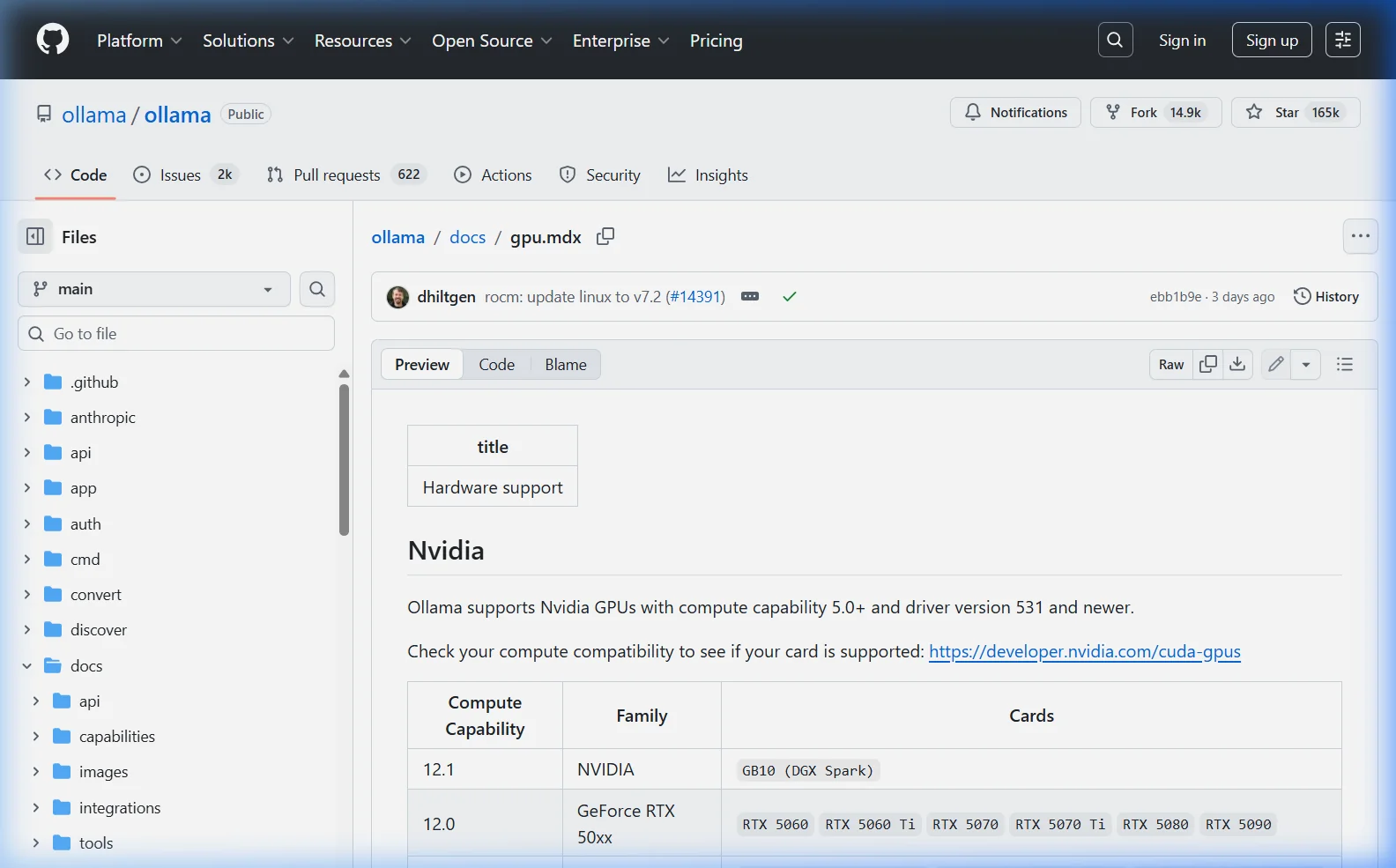
GPU Requirements — What You Need
| Platform | Requirement | Minimum VRAM | Recommended |
|---|---|---|---|
| NVIDIA (Windows/Linux) | CUDA 11.3+ compatible GPU | 4 GB | 8 GB+ (RTX 3060 or better) |
| AMD (Linux only) | ROCm-supported GPU (RX 5000+) | 8 GB | 16 GB+ (RX 6800 XT or better) |
| Apple Silicon (Mac) | M1, M1 Pro, M1 Max, M2, M3, M4 series | 8 GB unified memory | 16 GB+ unified memory |
| Intel Arc (Linux) | Intel Arc A-series | 8 GB | Experimental support |
Quick VRAM reference for popular models
| Model | Size | VRAM Required (Q4) | VRAM Required (Q8) |
|---|---|---|---|
| Phi-3 Mini | 3.8B | 3 GB | 5 GB |
| Llama 3.1 / Mistral | 7–8B | 5 GB | 9 GB |
| Gemma 3 / CodeLlama | 12–13B | 8 GB | 14 GB |
| Qwen2.5 / Phi-3 Medium | 14B | 10 GB | 16 GB |
| Gemma 27B / DeepSeek-R1 | 27–32B | 20 GB | 34 GB |
| Llama 3.1 70B | 70B | 43 GB | 70 GB |
NVIDIA GPU Setup — Windows
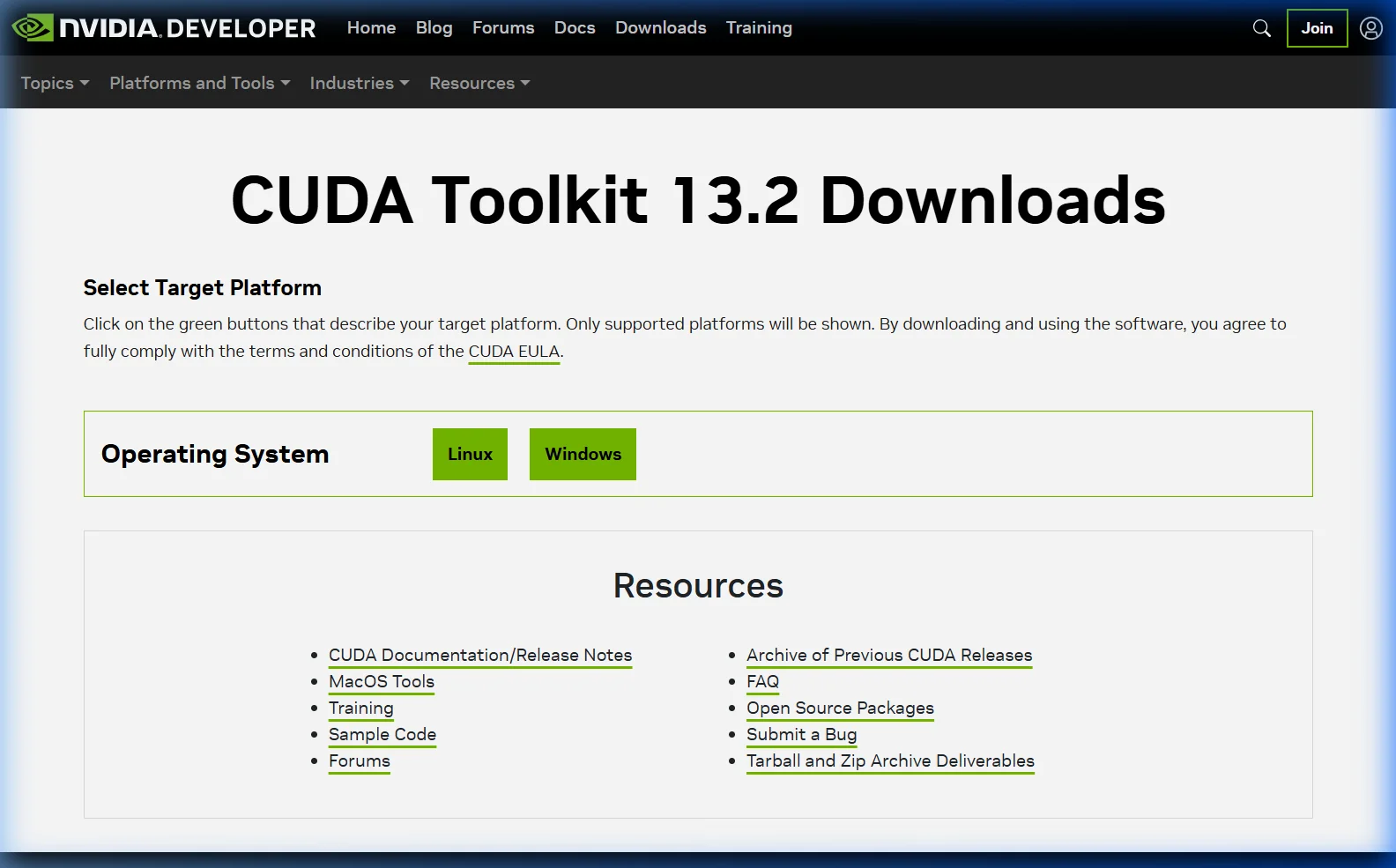
Step 1 — Install NVIDIA Drivers
Download and install the latest NVIDIA drivers from nvidia.com/drivers. Choose your GPU model and select “Game Ready Driver” (GRD) or “Studio Driver” (SD) — both work for Ollama.
Verify installation in PowerShell:
nvidia-smi
# Should show your GPU model, driver version, and VRAM
Step 2 — Install Ollama
Download and install Ollama from ollama.com/download. The Windows installer automatically includes CUDA support — no separate CUDA toolkit installation required for Ollama.
Step 3 — Verify GPU Is Being Used
In one terminal, start a model:
ollama run llama3.1In another terminal, check GPU utilization:
nvidia-smi
# Look for the ollama_llama_server process under "Processes"
# GPU-Util should show >0% while the model is generating
You can also check via Ollama’s API:
curl http://localhost:11434/api/ps
# Response shows "size_vram" — if it's > 0, the GPU is being used
NVIDIA GPU Setup — Linux (Ubuntu / Debian)
Step 1 — Install NVIDIA Drivers
# Ubuntu — install recommended driver automatically
sudo apt update
sudo ubuntu-drivers autoinstall
sudo reboot
Or install a specific version:
sudo apt install nvidia-driver-550
sudo reboot
Verify after reboot:
nvidia-smiStep 2 — Install Ollama
curl -fsSL https://ollama.com/install.sh | shThe Ollama installer on Linux automatically detects your GPU and configures CUDA support. No separate CUDA toolkit installation is required.
Step 3 — Verify GPU Acceleration
# Run a model
ollama run llama3.1

# In another terminal, watch GPU usage in real time
watch -n 1 nvidia-smi
You should see GPU memory allocated and GPU utilization spiking during generation.
Step 4 — Fedora / RHEL / CentOS NVIDIA Setup
# Add RPM Fusion repository
sudo dnf install https://download1.rpmfusion.org/nonfree/fedora/rpmfusion-nonfree-release-$(rpm -E %fedora).noarch.rpm

# Install NVIDIA drivers
sudo dnf install akmod-nvidia
sudo reboot

# Verify
nvidia-smi
AMD GPU Setup — Linux (ROCm)
AMD GPU support in Ollama uses ROCm — AMD’s open-source GPU compute platform. Currently supported on Linux only; Windows ROCm support is in development.
Supported AMD GPUs (ROCm 6.x)
- RX 7000 series (RX 7900 XTX, RX 7800 XT, etc.) — Full support
- RX 6000 series (RX 6800 XT, RX 6700 XT, etc.) — Full support
- RX 5000 series (RX 5700 XT, etc.) — Basic support
- Instinct series (MI250, MI300X) — Full datacenter support
- RX 580 / Vega — Limited/experimental
Step 1 — Install ROCm (Ubuntu 22.04)
# Add AMD ROCm repository
wget https://repo.radeon.com/amdgpu-install/6.1.3/ubuntu/jammy/amdgpu-install_6.1.60103-1_all.deb
sudo dpkg -i amdgpu-install_6.1.60103-1_all.deb
sudo apt update

# Install ROCm
sudo amdgpu-install --usecase=rocm
sudo reboot
Step 2 — Add your user to the render and video groups
sudo usermod -a -G render,video $LOGNAME
# Log out and back in (or reboot) for the change to take effect
Step 3 — Verify ROCm
rocminfo | grep "Marketing Name"
# Should list your AMD GPU
Step 4 — Install Ollama
curl -fsSL https://ollama.com/install.sh | shOllama’s installer detects ROCm and enables AMD GPU support automatically.
Step 5 — If your GPU isn’t auto-detected (HSA_OVERRIDE_GFX_VERSION)
Some older or less common AMD GPUs need a compatibility override:
# Add to /etc/environment or your shell profile (.bashrc / .zshrc)
export HSA_OVERRIDE_GFX_VERSION=10.3.0   # For RX 5000 / 6000 series
# OR
export HSA_OVERRIDE_GFX_VERSION=11.0.0   # For RX 7000 series

# Then restart Ollama
sudo systemctl restart ollama
Apple Silicon — macOS GPU Acceleration
Good news: if you’re on an Apple Silicon Mac (M1, M2, M3, M4), GPU acceleration is completely automatic. Ollama uses Apple Metal and takes advantage of the unified memory architecture — where CPU and GPU share the same memory pool.
Install Ollama on Mac
# Option 1: Download from ollama.com/download (simplest)
# Option 2: Homebrew
brew install ollama
Verify Metal GPU Acceleration
# Run a model
ollama run llama3.1

# Check with Ollama's process status API
curl http://localhost:11434/api/ps
# "size_vram" will show GPU memory used

# Or check Activity Monitor → GPU History (Window menu)
Why Apple Silicon Is Special for AI
Unified memory means there’s no separate GPU VRAM pool — the entire system memory is shared between CPU and GPU. On an M3 Max with 128 GB of unified memory, you can run a 70B model entirely on the GPU, which on a discrete NVIDIA GPU would require $15,000+ worth of professional GPUs. This makes Apple Silicon uniquely capable for large model inference in a laptop.
| Mac Model | Memory | Largest GPU-Runnable Model (Q4) |
|---|---|---|
| M1 (base), M2, M3 | 8 GB | 7B models (barely; use Phi-3 Mini) |
| M1, M2, M3, M4 (16 GB) | 16 GB | 13B models comfortably, 7B fast |
| M1 Pro / M2 Pro / M3 Pro | 18–36 GB | 32B models comfortably |
| M1 Max / M2 Max / M3 Max | 32–96 GB | 70B models, some larger |
| M2 Ultra / M3 Ultra | 96–192 GB | Llama 3.1 405B at Q2 |
Partial GPU Offloading — When Your Model Doesn’t Fit
If your model is larger than your GPU VRAM, Ollama can split it — putting some layers on the GPU and the rest in system RAM. This is called “partial offloading” and it’s automatic, but you can control it manually.
Using OLLAMA_NUM_GPU layers (environment variable)
# Set how many model layers to run on GPU
# 0 = CPU only, -1 = auto (all that fit), any positive number = that many layers

# Windows (PowerShell)
$env:OLLAMA_NUM_GPU = 20
ollama run llama3.1

# Linux / Mac
OLLAMA_NUM_GPU=20 ollama run llama3.1
To find out how many total layers your model has:
curl http://localhost:11434/api/show -d '{"name": "llama3.1"}'
# Look for "num_layers" in the model_info section
A rough guide: if Llama 3.1 8B has 32 layers and your GPU can hold 5 GB, you can fit about 22–24 layers on GPU. Setting OLLAMA_NUM_GPU=22 gives you the fastest possible speed with your available VRAM.
Permanently set via systemd (Linux)
sudo systemctl edit ollama[Service]
Environment="OLLAMA_NUM_GPU=20"sudo systemctl restart ollamaMulti-GPU Setup
Ollama supports spreading a model across multiple GPUs. By default, it uses all available GPUs automatically.
Specify which GPUs to use
# Use only GPU 0 and GPU 1 (zero-indexed)
CUDA_VISIBLE_DEVICES=0,1 ollama run llama3.1:70b

# Use only GPU 0
CUDA_VISIBLE_DEVICES=0 ollama run llama3.1
Check which GPUs Ollama sees
ollama info
# Lists all detected GPUs and their available VRAM
GPU Performance Tuning — Make It Faster
Increase context window for GPU-accelerated sessions
# Run with 8k context (default is 2048)
ollama run llama3.1 --num-ctx 8192

# Or via API
curl http://localhost:11434/api/generate \
  -d '{"model":"llama3.1","prompt":"Hello","options":{"num_ctx":8192}}'
Note: Increasing context size uses more VRAM. If you exceed available VRAM, layers will spill to CPU RAM and throughput drops significantly.
Increase GPU memory allowed for KV cache
# Use ~90% of GPU memory instead of default 80%
# Set via environment variable
OLLAMA_GPU_OVERHEAD=134217728 ollama serve  # 128MB overhead reservation
Flash Attention (faster long-context inference)
# Enable Flash Attention for faster processing of long prompts
OLLAMA_FLASH_ATTENTION=1 ollama serve
Confirming GPU Usage — Complete Checklist
- Run
ollama run llama3.1and type something in the chat - Check
nvidia-smi(NVIDIA) orrocm-smi(AMD) — GPU memory should be occupied - Check
curl http://localhost:11434/api/ps—"size_vram"should be > 0 - Notice generation speed — GPU-accelerated models generate noticeably faster (multiple tokens per second vs. slow stuttering on CPU)
If size_vram is 0 and size shows the full model size, Ollama is running on CPU only.
Common GPU Errors and Fixes
Error: “CUDA error: no kernel image is available for execution on the device”
Your NVIDIA drivers are too old. Update to the latest driver from nvidia.com/drivers. Ollama requires drivers compatible with CUDA 11.3 or newer — practically any driver released after 2021 works.
Error: “GPU memory is insufficient, falling back to CPU”
Your model is too large for your VRAM. Options:
- Use a smaller model (try
phi3:miniorllama3.1instead of bigger variants) - Use a more quantized version:
ollama pull llama3.1:8b-instruct-q2_k(smallest size) - Enable partial offloading with
OLLAMA_NUM_GPU— some layers on GPU is faster than all on CPU - Close other GPU-intensive apps (games, other AI tools) to free VRAM
AMD GPU not detected on Linux
# Check if ROCm sees your GPU
rocminfo | grep "Device Type"

# If not found, ensure your user is in the right groups
groups $USER  # Should include 'render' and 'video'

# Add if missing
sudo usermod -a -G render,video $USER
# Then log out and log back in
Ollama running on CPU despite GPU being available
# Check Ollama logs for why GPU isn't being used
journalctl -u ollama -n 50  # Linux (systemd)

# On Windows, check Event Viewer or run Ollama in terminal:
ollama serve  # Watch startup messages for GPU detection info
VRAM slowly filling up and not releasing
Ollama keeps models loaded in VRAM for 5 minutes after the last request (to avoid reload delays). This is intentional. To unload a model immediately:
# Unload model by setting keep_alive to 0
curl http://localhost:11434/api/generate \
  -d '{"model":"llama3.1","keep_alive":0}'
Frequently Asked Questions
Does Ollama use GPU automatically or do I need to configure it?
Ollama detects and uses your GPU automatically upon installation — no configuration needed. On NVIDIA systems (Windows and Linux), it uses CUDA. On Apple Silicon Macs, it uses Metal. On Linux with AMD GPUs and ROCm installed, it uses ROCm automatically. The only time manual configuration is needed is for partial offloading or multi-GPU selection.
Can I use an NVIDIA GPU on a Mac with Ollama?
No. Modern Macs don’t support NVIDIA GPUs — Apple and NVIDIA ended driver support for macOS in 2019. If you have an older Mac with an NVIDIA eGPU, it’s not supported by Ollama. Apple Silicon Macs use Metal for GPU acceleration, which is fully supported.
Does AMD ROCm work on Windows?
ROCm has very limited Windows support and AMD GPU acceleration in Ollama is Linux-only as of early 2026. AMD GPU support on Windows via Vulkan or DirectML is on the Ollama roadmap but not yet released. Windows AMD GPU users currently run Ollama on CPU or use WSL2 with ROCm (which is complex to configure).
How much faster is GPU vs CPU?
Typically 10–20x faster for token generation. A modern CPU (like an i9-13900K) generates roughly 3–8 tokens/second with a 7B model. An RTX 3080 generates 50–70 tokens/second with the same model. An RTX 4090 can reach 100–120 tokens/second. Apple M3 Pro generates around 40–60 tokens/second for 7B models.
Can I run GPU acceleration in Docker?
Yes. Use the NVIDIA Container Toolkit and specify --gpus all in your Docker run command. See our Ollama Linux install guide → for the full Docker GPU setup commands. AMD GPU support in Docker requires the ROCm Docker image.
Having issues with GPU acceleration on your specific hardware? Describe your setup (GPU model, OS, driver version) in the comments and I’ll help troubleshoot.
About this guide: Tested with Ollama 0.6.x on RTX 3080 (Windows 11 + Ubuntu 22.04), RX 6800 XT (Ubuntu 22.04 + ROCm 6.1), and M3 Pro MacBook Pro (macOS Sequoia). Last updated March 2026.